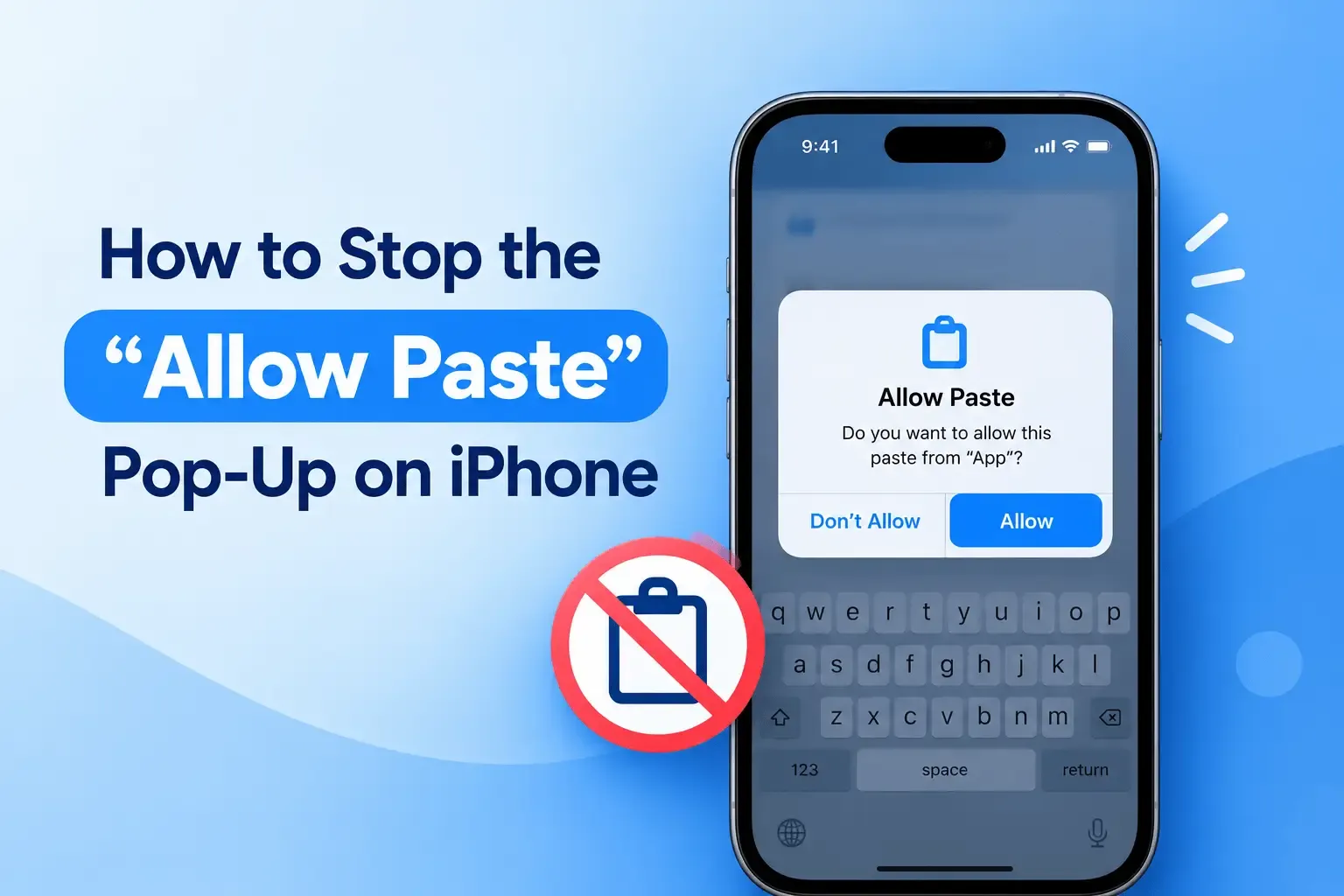
You copy a link in Safari, switch to Notes, and tap Paste. Instead of pasting, iOS stops you with a box saying Notes would like to paste from Safari. You tap Allow Paste. Ten minutes later it asks again. If you move text between the same few apps all day, that pop-up is pure friction.
The good news is that you can switch it off, app by app. The part most guides skip is that you shouldn't switch it off everywhere. The prompt exists because an app that can read your clipboard can read whatever is on it right now, and that could be a password, a one-time code or an account number. This guide shows how to stop the pop-up and how to decide which apps deserve a permanent yes.
Short answer: Open Settings → Apps → [the app] → Paste from Other Apps and choose Allow (never ask again), Deny (never allow) or Ask (the default). The option only appears for an app after it has asked at least once. Choose Allow only for apps you trust and use constantly.
What the “Allow Paste” pop-up actually means
iOS 16 introduced a privacy rule: an app must get your permission before it directly reads your clipboard to paste something copied in another app, as MacRumors explained when Apple added the per-app setting. Apple's own developer documentation puts it plainly: in iOS 16 and later, an app that pastes programmatically triggers an alert asking for approval before it can access what's on the pasteboard.
In other words, the pop-up appears when an app tries to grab your clipboard on its own, without you tapping a Paste button or choosing Paste from the menu. It is a privacy feature working as designed, not a bug. That's also why it only shows up when content moves from one app to another.
How to stop the pop-up for one app
- Open Settings on your iPhone.
- Tap Apps (on iOS 18 and later). On older versions, scroll down the main Settings list and tap the app directly. Tip: pull down on the Settings home screen and search the app's name.
- Select the app that keeps interrupting you.
- Tap Paste from Other Apps.
- Choose Allow, Ask or Deny using the guide below.
If you can't find Paste from Other Apps, nothing is wrong. iOS only shows it for apps that have already asked to read your clipboard. Copy something in another app, paste it into the app in question, and the setting should appear afterwards. If your iOS version lays out Settings differently, search for the app by name.
The setting is per app. iOS doesn't offer a single switch for all apps, so repeat the steps for each app that bothers you.
Ask, Allow or Deny: what each choice does
Setting | What it does | Good for | Watch out for |
Ask | The app must request permission to paste from other apps (the default) | Most apps, and any app you don't fully know | Repeated pop-ups in apps you use all day |
Allow | The app can paste from other apps without asking again | Apps you trust and paste into constantly | It's a standing permission: whatever is on your clipboard is readable by that app when it asks |
Deny | The app cannot paste from other apps | Apps with no reason to touch your clipboard | Pasting into that app may stop working until you change it back |
Should you choose Allow? Think about what's on your clipboard
Before you hit Allow, picture what your clipboard holds in a normal day: a verification code, a password you copied from a manager, a delivery address, a link to a private document, a bank reference. An app set to Allow can read whichever of those happens to be there each time it checks. A quick way to decide:
- Allow: apps you open deliberately to paste into, such as your notes app, your main messaging app or an email app you trust.
- Keep Ask: apps that handle money or accounts, and apps you haven't used long enough to trust. The occasional prompt is cheap insurance.
- Deny or investigate: an app that suddenly asks to paste when you were nowhere near its paste feature, such as a game or a shopping app. A prompt that doesn't match what you were doing is a reason to say no.
- Decide on purpose: a clipboard manager. Automatic capture needs the permission by design, so it's your call whether that app earns it. More on this below.
Three ways to paste that never trigger the prompt
- Use the Paste option in the edit menu. Touch and hold in a text field and tap Paste. Per MacRumors, citing an Apple engineer, the prompt doesn't appear when you choose Paste from that menu.
- Use an app's built-in Paste button. Apple gives developers a system paste button that pastes only when you tap it, so apps that use it don't need to show the permission alert.
- Paste inside the same app. Copying and pasting within one app doesn't cross between apps, so there's nothing for iOS to ask about.
The second point is documented in Apple's UIPasteControl reference, which says to use that button to paste without a user prompt. If you're curious about the keyboard-level paste suggestion coming with iOS 27, we covered what it does and doesn't change in iOS 27's New Paste Shortcut: What It Changes.
Why does it keep asking even after I tap Allow Paste?
Tapping Allow Paste in the alert only covers that paste. The lasting fix is the Settings change above. Beyond that, a few things explain repeat prompts:
- The app reads your clipboard every time it opens. Some apps check for a copied link, code or tracking number on launch, so they ask each time while set to Ask.
- Early iOS 16 builds over-prompted. MacRumors notes Apple fixed an excessive-prompt issue in iOS 16.0.2. If your phone is current, that's not your problem.
- The permission didn't stick. If an app still asks after you set Allow, try switching it to Ask and back to Allow. It's a harmless reset, not an Apple-documented fix.
Pasting stopped working after I chose Deny
That's what Deny does: the app can no longer paste from other apps. Go back to Settings → Apps → the app → Paste from Other Apps and set it to Ask or Allow. Some older or less-maintained apps handle Deny poorly, so if one misbehaves, Ask is the safer fallback.
What this means if you use a clipboard manager
A clipboard manager that saves what you copy has to read the clipboard, so it runs into the same permission. iOS won't let any app silently watch your clipboard in the background, which is exactly what this prompt protects against. In practice, a clipboard manager on iPhone captures copies in one of three ways:
- A deliberate action, such as sending what you selected through the Share sheet.
- The keyboard, where you tap a saved item to insert it. See how to use a clipboard keyboard extension on iPhone for setup (Apple's own steps for adding a keyboard are in Add or change keyboards on iPhone).
- Automatic capture, which is convenient but requires granting the paste permission.
QuickPaste supports the first two and offers the third as an option. Its App Store listing explains that you can save through the Share sheet by choosing Copy to Quick Paste, and that if you don't want permission prompts every time you copy, you can turn on automatic clipboard capture in its settings. Which to choose is a trust decision: the site states that clipboard history is stored on your device, with iCloud used only if you sync across iPhone, iPad and Mac. Whatever manager you pick, read what it says about privacy before you set it to Allow. For the bigger picture, see our guides on how to see clipboard history on iPhone and the best clipboard manager apps for iPhone.
And if the thing you copied keeps vanishing before you can paste it, that's a different problem with different causes. See Why Does Copied Text Disappear on iPhone?.
Frequently asked questions
What does “Allow Paste” mean on iPhone?
It means an app is trying to read something you copied in another app without you tapping Paste. iOS asks first so apps can't quietly read your clipboard. Tapping Allow Paste lets that one paste go through.
How do I turn off the Allow Paste pop-up?
Go to Settings → Apps → [the app] → Paste from Other Apps and choose Allow, or Deny if the app has no business reading your clipboard. Do this for each app that asks. On older iOS versions, find the app directly in the main Settings list.
Is it safe to choose Allow?
It's reasonable for apps you trust and use all the time, but Allow is a standing permission: the app can read whatever is on your clipboard when it checks. Keep Ask for apps involving money or accounts, and for apps you don't know well.
Why don't I see Paste from Other Apps in Settings?
iOS only shows the option for apps that have already requested clipboard access. Copy something in another app, paste it into the app, and the option should appear. Pasting within a single app never triggers it.
Does tapping Paste in the edit menu trigger the prompt?
No. According to MacRumors, citing an Apple engineer, the prompt doesn't appear when you choose Paste from the menu after touching and holding in a text field, or when you use an app's official paste button.
Can I turn the pop-up off for all apps at once?
iOS doesn't provide a single switch for this. The setting is per app, so you change it one app at a time.
Does this affect clipboard manager apps?
Yes, if the manager reads your clipboard automatically. You can save items through the Share sheet or the keyboard instead, or grant the permission if you trust the app and want automatic capture.
The short version
The pop-up is iOS asking before an app reads your clipboard. Stop it app by app in Settings → Apps → Paste from Other Apps, give Allow only to apps you trust, and remember that the Paste option in the edit menu never triggers it. If you want a searchable history of what you copy and are comfortable with the trade-offs above, QuickPaste is one option for iPhone, iPad and Mac.