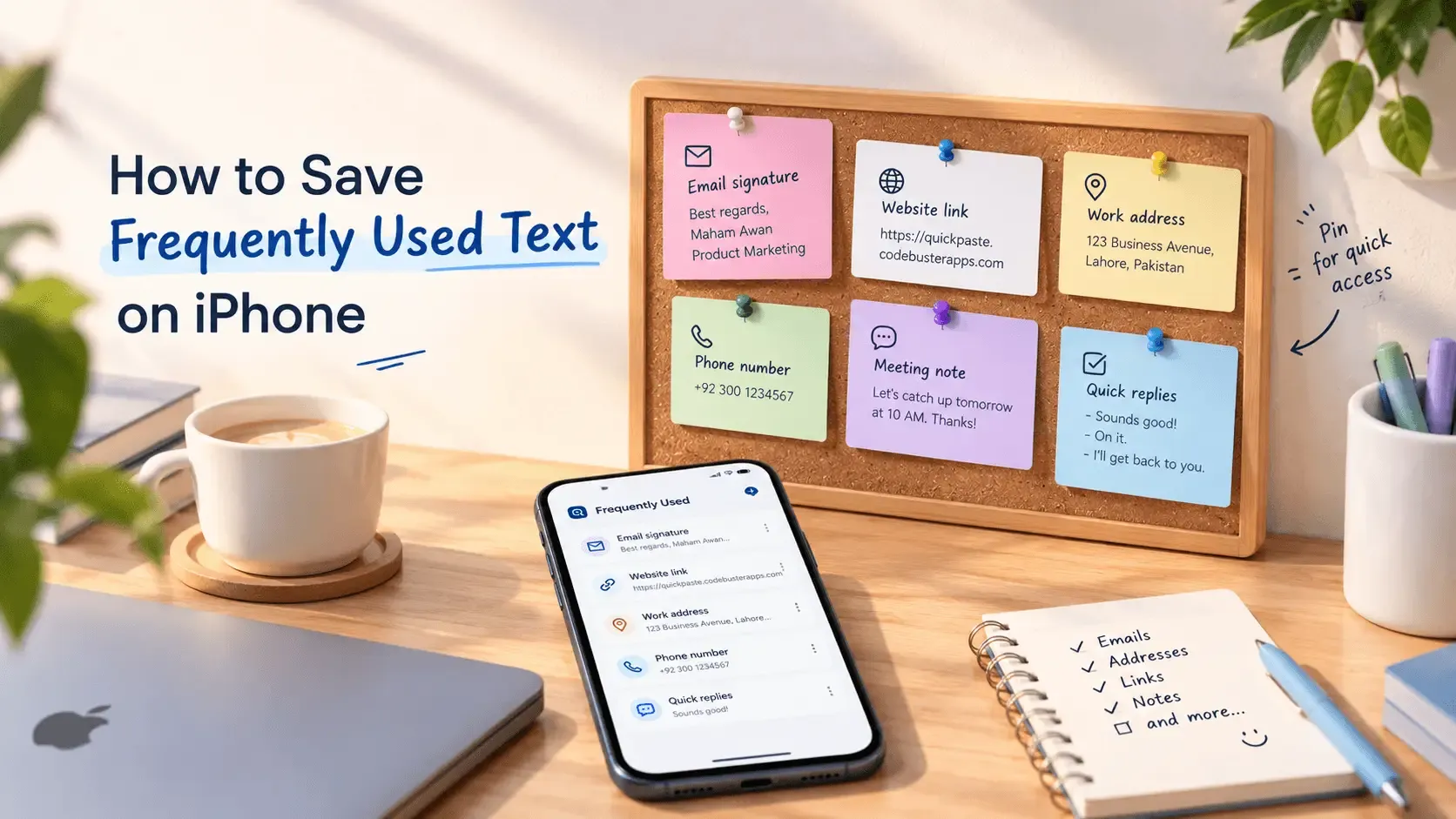
iPhone has a built-in way to do this: Text Replacement, found in Settings → General → Keyboard. Type a short trigger — like "omw" — and it expands automatically into the full text you've saved, anywhere you're typing. It's free, requires no app, and syncs across your devices via iCloud.
For short, frequently typed phrases, this is genuinely the right tool and worth setting up regardless of anything else. It does start to strain once you're managing more than a handful of longer templates — where that happens, and what to do about it, is covered further down.
How to Set Up Text Replacement on iPhone
- Open Settings → General → Keyboard → Text Replacement.
- Tap the + in the top right corner.
- Enter the full phrase in the Phrase field — this is what gets typed out in full.
- Enter a short trigger in the Shortcut field — this is what you'll actually type, like "addr" or "sig."
- Tap Save. From then on, typing the shortcut anywhere on the device — Messages, Mail, Notes, any app — and tapping the space bar expands it into the full phrase automatically.
Full official steps are documented directly by Apple: Use text replacements on iPhone.
What Text Replacement Is Actually Good For
This is the right tool, not a workaround, for anything short, stable, and used constantly:
- Email signatures — name, title, and contact info expanded from a two-letter trigger.
- Addresses — home or work address, expanded when filling out forms or sending directions.
- Common short replies — "on my way," a standard scheduling line, a quick acknowledgment.
- Frequently misspelled words or long terms — a technical term or a name you type often but don't want to spell out each time.
For this category of use, Text Replacement is free, built in, and already synced across your devices with no setup beyond the steps above.
Where Text Replacement Starts to Break Down
The friction shows up at a specific point: once you're managing more than a handful of entries, or the text itself gets longer than a sentence or two. A few concrete limits:
- No categories or folders. Every shortcut lives in one long, alphabetized list — there's no way to group work templates separately from personal ones.
- You have to remember the exact trigger. There's no search — if you forget whether you saved something under "ref" or "reply," you're scrolling the full list to check.
- Awkward for longer text. A multi-paragraph template technically works, but the settings screen it's managed in wasn't built for anything longer than a sentence.
- Trigger collisions. A short trigger can accidentally fire in the middle of typing something unrelated that happens to contain the same letters.
None of this makes Text Replacement a bad feature — it's doing exactly what it was designed for. It just wasn't designed to be a categorized library of reusable templates, which is a different job.
A Second Native Option: A Pinned Note
The other fully native approach is keeping a dedicated note — pinned to the top of the Notes app for quick access — with your common templates listed out, and manually copying the one you need each time. It requires no setup at all and costs nothing, but it's manual: no auto-expansion, no search beyond scrolling the note, and no keyboard-level access from inside other apps.
When You've Outgrown the Native Options
If you're maintaining more than a handful of templates, need to organize them by project or context, or regularly reuse longer text than a sentence, a clipboard manager is built for that specific job rather than adapted to it. QuickPaste replaces the settings-list-and-triggers model with organized, color-coded pinboards — group templates by category, search by keyword instead of remembering a trigger, and paste full templates of any length directly from a visual list via the keyboard, with no risk of accidentally firing mid-sentence.
The two tools solve different-sized versions of the same problem, and using both together is a reasonable setup rather than a redundant one:
Text Replacement for the handful of very short, universal things you type constantly — your signature, your address.
- QuickPaste pinboards for longer templates and anything you want organized into categories — client replies, project-specific notes, anything you're actively searching for rather than reciting from memory.
Setting Up QuickPaste for Longer or Organized Templates
- Download QuickPaste free from the App Store.
- Create pinboards for your real categories — work, personal, client templates, whatever matches how you actually divide things.
- Paste your longer templates in and pin them to the relevant board.
- Use the paste keyboard — touch and hold the globe key while typing, select QuickPaste — to insert any saved template directly, in any app.
Frequently Asked Questions
How do I add text shortcuts on iPhone?
Go to Settings → General → Keyboard → Text Replacement, tap the + button, enter the full phrase and a short trigger, then tap Save. The shortcut works anywhere on the device once saved.
Does Text Replacement sync across iPhone, iPad, and Mac?
Yes — Text Replacement entries sync via iCloud across devices signed in with the same Apple Account.
What's the difference between Text Replacement and a clipboard manager?
Text Replacement expands a short typed trigger into saved text as you type, and works best for short, stable phrases. A clipboard manager saves and organizes longer, more varied content — including things you copy on the fly — into a searchable, categorized library you paste from a visual list rather than by remembering a trigger.
Can I organize my saved phrases into categories on iPhone?
Not with the native Text Replacement feature, which keeps everything in one flat list. A clipboard manager with pinboards or folders, such as QuickPaste, adds that organization layer.
Is there a limit to how many text replacements I can save?
Apple doesn't publish a strict cap, but the flat, unsearchable list becomes harder to manage well before you'd hit any technical limit — this is the practical ceiling most people run into.
The Short Version
Start with Text Replacement for your signature, address, and the handful of short phrases you type constantly — it's free, built in, and already synced. Once you're managing more than that, or want longer templates organized by category, QuickPaste is built for that next layer.
For more on setting up QuickPaste's keyboard, see How to Add Clipboard on iPhone Keyboard, and for how pinboards work in more detail, see Clipboard on Mac: Clipboard History & Pinboards.