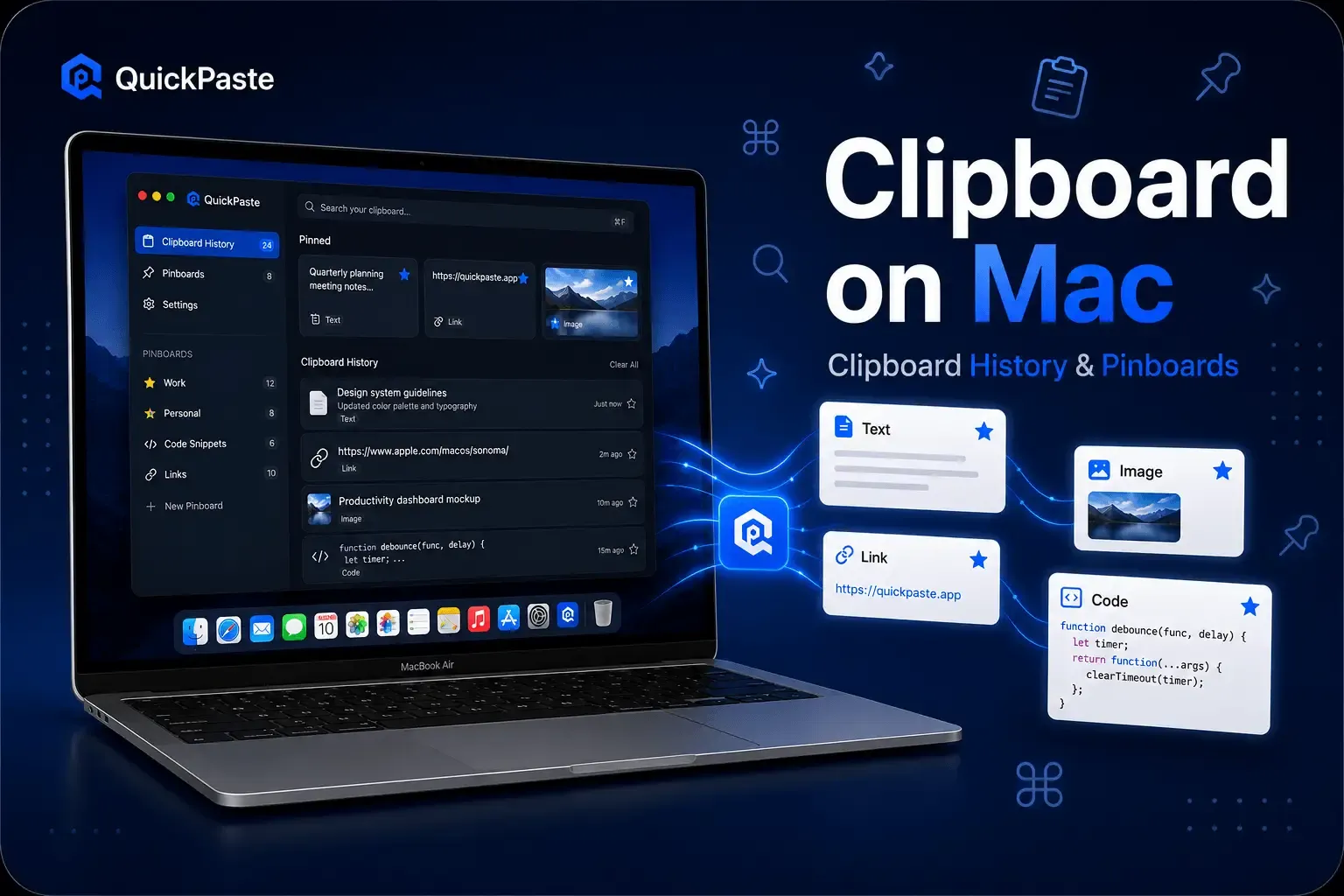
QuickPaste for Mac keeps a searchable history of everything you copy and lets you organize the clips you use most into pinboards — labeled, color-coded groups you build around how you actually work, so your most-used items are one click away instead of buried in a growing list.
This covers how both features work, how they're different from what macOS gives you natively, and how to set them up so your clipboard actually holds up across a real workday.
Clipboard History in QuickPaste for Mac
Every item you copy — text, links, images, code, file paths — is saved automatically and kept in a searchable list. This is a meaningfully different experience from macOS's own clipboard tools. Native Spotlight clipboard search (Command-Space, then Command-4) shows your recent copies in one flat, unsorted list with no way to label or group them — a real improvement over having nothing, but not built for organizing a clipboard you rely on daily. QuickPaste's history is built for that: everything is retained, searchable by keyword, and stays out of your way until you need it.
Search works the same way whether you're looking for something copied a minute ago or from earlier in the week — type a keyword and the matching clips surface immediately, ranked by relevance and recency.
What Pinboards Are and Why They Matter?
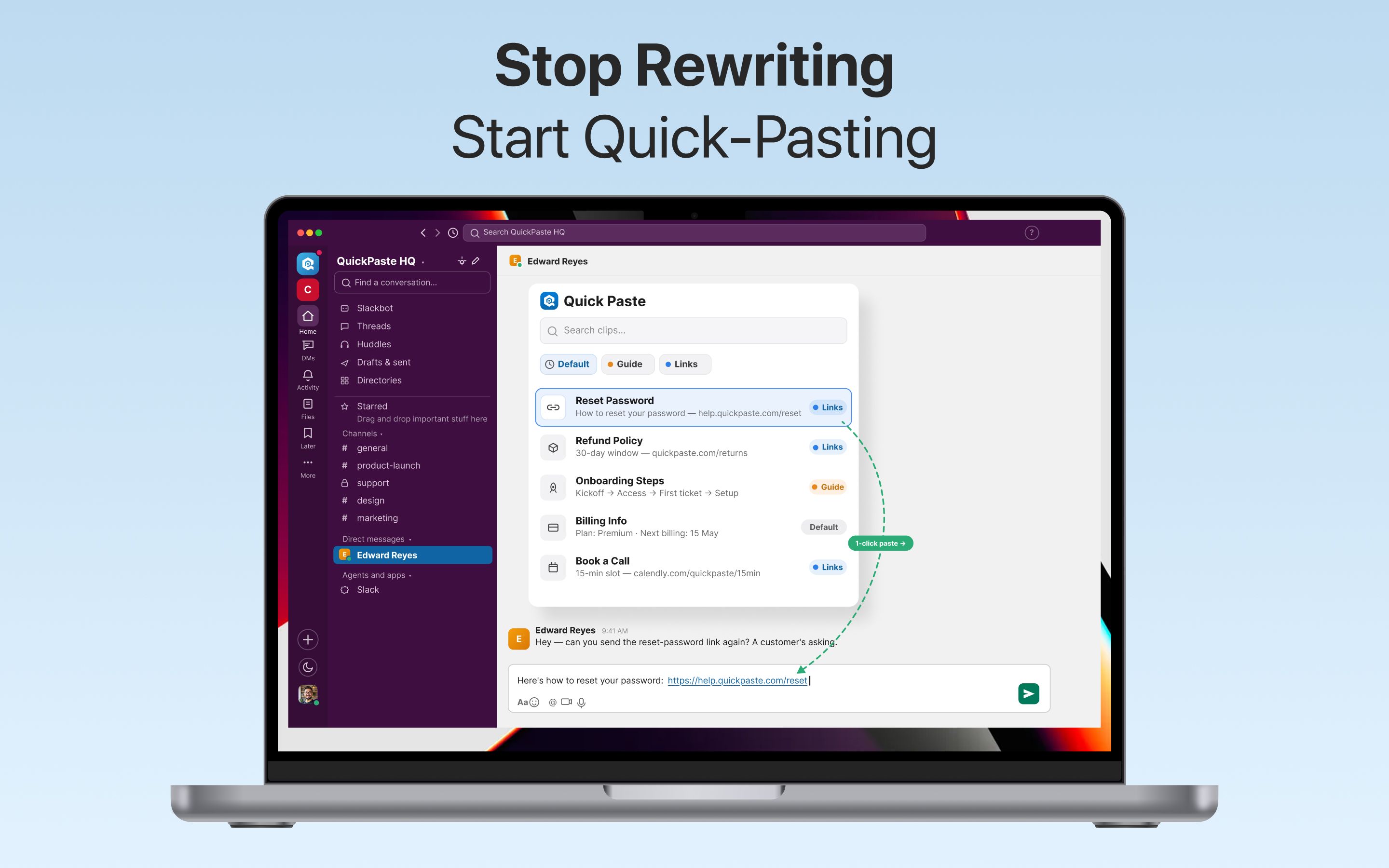
History alone solves "I need to find something I copied." Pinboards solve a different problem: I need the same handful of things, over and over, without digging for them. A pinboard is a labeled, color-coded group you create — Work, Personal, Client Templates, Dev Commands, whatever matches how you actually divide your day — and pin specific clips to it so they're always one click away, regardless of how much new history has piled up since.
A few ways this plays out in practice:
- Support or sales templates — a pinboard of standard replies (refund policy, pricing, follow-up messages) that stays in the same place whether you're replying from Mail, Slack, or a browser tab.
- Developer commands — the deploy sequence, common git commands, and connection strings you reuse across projects, pinned instead of retyped.
- Writing and research — citations, sources, and reference links kept together for a specific piece of work, separate from everything else you're copying that day.
- Personal use — addresses, confirmation numbers, and recurring details you paste into forms often enough that retyping them is a genuine waste of time.
An item can belong to more than one pinboard, boards can be renamed and reordered, and nothing about pinning removes an item from your searchable history — it's an additional layer of organization on top of it, not a replacement for it.
Read also: Does Mac Have Clipboard History?
Setting Up Clipboard History and Pinboards on Mac
- Download QuickPaste from the Mac App Store and open it — it runs quietly in the menu bar.
- Turn on automatic capture in Settings so every copy is saved without a prompt interrupting your work.
- Create your first pinboard around a real category — start with whatever you copy most often in a given day.
- Pin clips as you go rather than trying to set everything up at once — the useful pinboards tend to emerge from a week of normal use, not a single setup session.
- Sign in with the same Apple Account on iPhone and iPad to sync the same history and pinboards across every device you use.
How This Syncs Across iPhone, iPad, and Mac
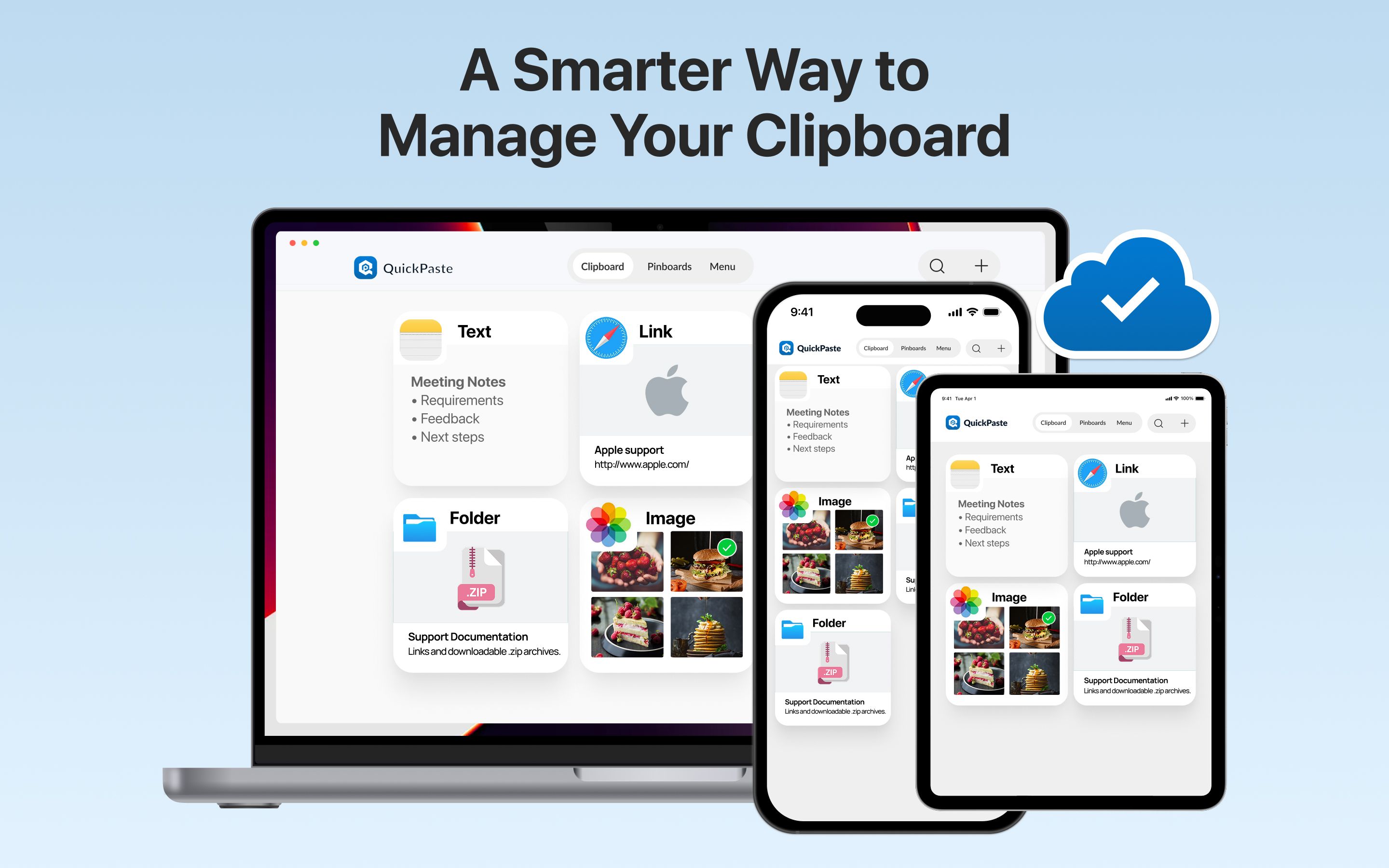
Clipboard history and pinboards sync via iCloud across Mac, iPhone, and iPad — a pinboard built at your desk is available on your phone an hour later with no extra setup. This is a different mechanism from Apple's own Universal Clipboard, which only ever carries the single most recent item between nearby devices and doesn't retain history or organization on either end. QuickPaste's sync keeps the full, organized picture consistent everywhere, not just the last thing you copied.
Frequently Asked Questions
What's the difference between clipboard history and a pinboard?
History is everything you've copied, automatically saved and searchable. A pinboard is a specific, labeled group of clips you've chosen to keep close at hand — a smaller, organized subset of history built around a category you define.
Do pinboards sync between Mac and iPhone?
Yes — pinboards and clipboard history both sync via iCloud, so the same organization is available across Mac, iPhone, and iPad when signed in with the same Apple Account.
Can one clip be in more than one pinboard?
Yes. A saved clip can be pinned to multiple boards at once if it's relevant to more than one category.
Does adding something to a pinboard remove it from history?
No. Pinning is additive — the item still exists in your full searchable history, and pinning just adds a faster path to it.
Is there a limit to how many pinboards I can create?
No fixed limit on the number of pinboards or pinned items — though for the feature to stay useful, it's worth keeping boards specific enough that each one still saves you time versus just searching history.
Getting Started
Clipboard history covers the moment you need to find something you copied; pinboards cover the things you reach for constantly and don't want to search for at all. Used together, they cover most of what a Mac clipboard workflow actually needs. QuickPaste is free to download from the Mac App Store.
For more on how Mac's native clipboard tools compare, see Canned Responses for Support and Sales Teams. If you're setting up the iPhone side too, see Clipboard Shortcuts on iPhone.