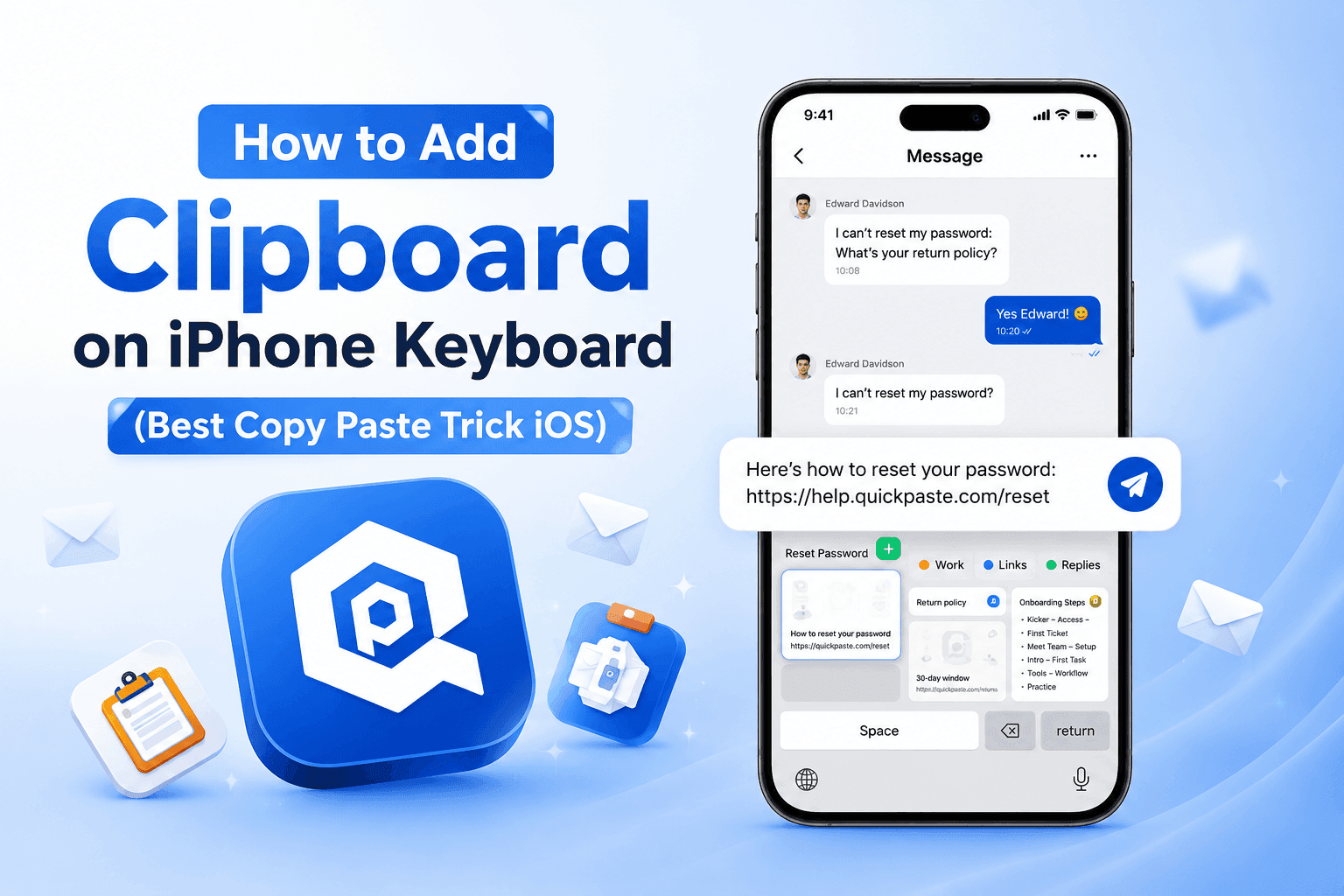
If you’ve ever copied something important on your iPhone and lost it moments later, you’re not alone. iOS doesn’t provide a built-in, visible clipboard history like many Android devices. That means once you copy new text, the previous item is gone.
But here’s the good news: you can add a clipboard-like experience directly to your iPhone keyboard and dramatically improve how you copy, save, and reuse text.
Can You Add Clipboard to iPhone Keyboard?
Technically, iOS doesn’t allow a native clipboard panel inside the default keyboard. However, you can achieve the same (and better) functionality using third-party apps that integrate seamlessly with your workflow.
Apps like QuickPaste – Clipboard Manager act as an extended clipboard, allowing you to store, organize, and instantly access copied content.
Best Way to Add Clipboard on iPhone Keyboard
Follow these steps to create a powerful clipboard system on your iPhone:
1. Install a Clipboard Manager App
Download QuickPaste from the App Store. It’s designed specifically to help you manage copied text efficiently.
Download QuickPaste for iPhone
2. Save Your Frequently Used Text
Open the app and add snippets like:
Email replies
Addresses
Links
Canned replies/Saved responses
3. Access Clipboard While Typing
While typing on your iPhone keyboard, switch to QuickPaste or use it alongside your apps to quickly insert saved text.
4. Paste Instantly
Tap any saved item in QuickPaste and paste it wherever you need — messages, emails, notes, or forms.
Key Benefits of Using a Clipboard Manager on iOS
Adding a clipboard solution isn’t just about convenience — it changes how you use your iPhone daily.
Faster Copy & Paste: No more switching back and forth to copy the same text repeatedly.
Never Lose Important Text: Store multiple copied items instead of relying on a single temporary clipboard.
Better Organization: Group and manage your snippets for quick access anytime.
Boost Productivity: Ideal for professionals, students, marketers, and anyone who types frequently.
Secure with Face ID: Keep your sensitive data secure with built-in Face ID protection. QuickPaste ensures that only you can access your saved text, links, and personal information adding an extra layer of privacy to your daily workflow.
Pro Tips to Copy & Paste Faster on iPhone
Want to get even more out of your clipboard setup? Try these tips:
- Save commonly used phrases like “On my way” or “Thanks, I’ll check”
- Store multiple versions of important messages
- Use clear labels for faster selection
- Regularly update your saved snippets
Small changes like these can save hours over time.
Read this: Copy and Paste Faster on iPhone (8 Proven Tricks)
Final Thoughts
While iPhone doesn’t offer a built-in clipboard history, you’re not limited by it. By using the right tool, you can effectively add a clipboard to your iPhone keyboard experience and take full control of your copied content.
If you want a faster, smarter, and more organized way to copy and paste on iOS, QuickPaste is a simple upgrade that makes a big difference.
Learn more about QuickPaste - Clipboard Manager
Frequently Asked Questions
Does iPhone have a clipboard history?
No, iPhone only stores one copied item at a time by default.
How can I see my clipboard on iPhone?
You need a third-party clipboard manager like QuickPaste to view and manage clipboard history.
Is QuickPaste free to use?
Yes, QuickPaste offers essential clipboard features to help you manage and reuse text efficiently.
Can I use clipboard inside iPhone keyboard?
Not directly in the default keyboard, but apps like QuickPaste let you quickly access and paste saved text right from your keyboard.