It is 4:40 p.m. and someone has just asked, for the sixth time today, how much it costs. You open a new reply and type almost exactly what you typed an hour ago. Earlier it was the same email to a new client, the same directions to a second person, and the same "thanks for reaching out" to three different chats. None of it is hard. It is just the same work, again and again.
That is what recurring replies feel like: no single message is a problem, but together they eat the day, and every retype is a chance to forget the price, mistype a link, or sound tired. The good news is that your iPhone gives you two real ways to reuse text. They solve different problems, and picking the wrong one is why a lot of people try saved replies once and give up.
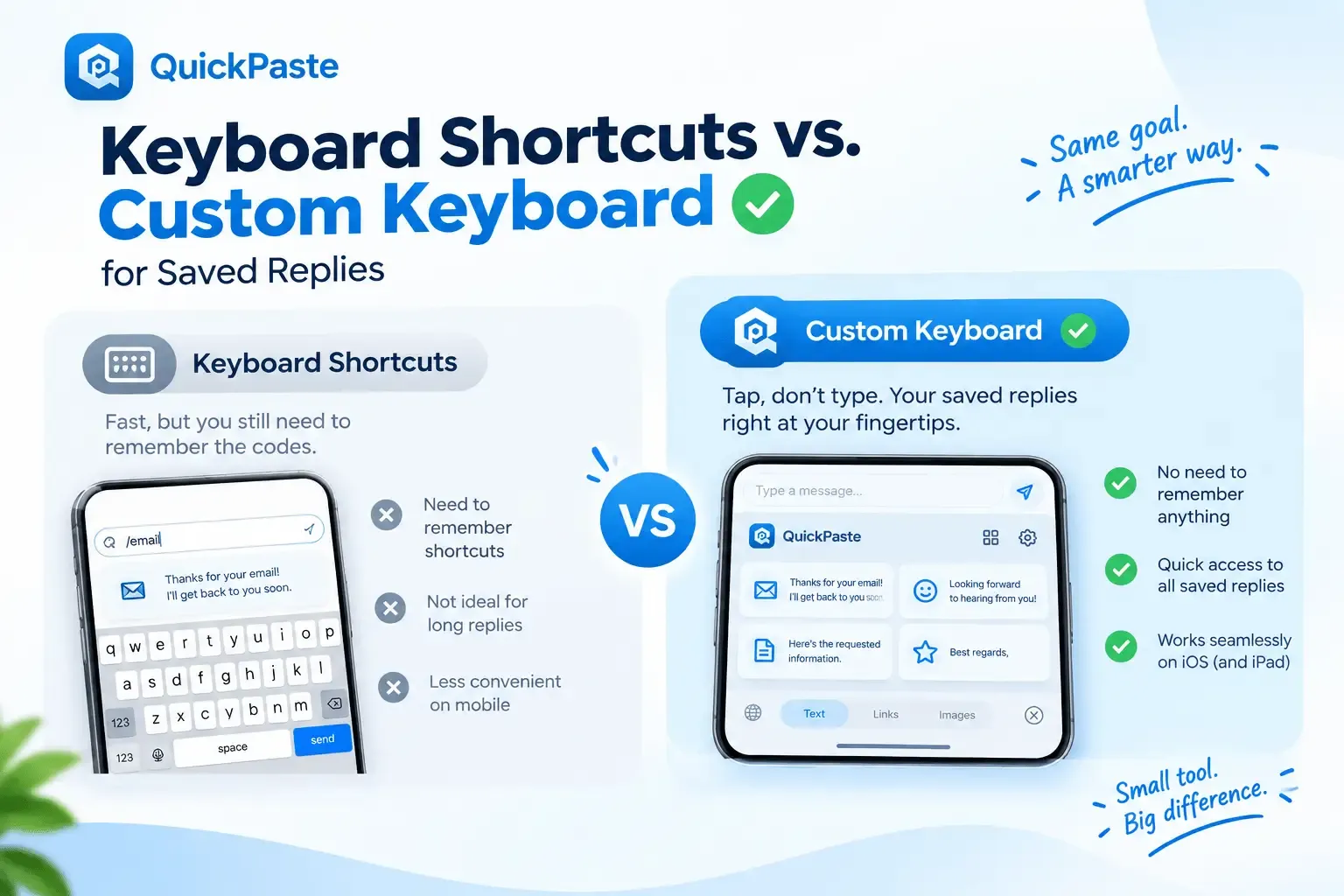
Short answer: use keyboard shortcuts (iOS Text Replacement) for short, stable phrases you can attach a trigger to. Use a custom keyboard extension when your saved replies are longer, more numerous, or need organizing, because you pick them from a list instead of remembering triggers. Clipboard history is a third, separate tool: it catches what you just copied, not what you reuse every week.
Why retyping the same message costs more than the typing
Most people land on this topic from one of three situations. Each has a different catch:
- The same email, different people. Gmail has templates, but Google's help page says you can only turn on and use them from Gmail on a computer. So the template you built at your desk doesn't help when you reply from your phone.
- The same reply, different chats. A saved reply inside one app doesn't follow you into the next. WhatsApp Business, for example, has quick replies for common questions, but they live inside that app only.
- The same text, several people. Copy it once and paste it into five chats works fine, right up until you copy anything else in between. iPhone's clipboard holds only the most recent copy, so the original is gone and you hunt for it again.
WhatsApp's own guidance on quick replies makes the same point: reusing answers reduces typing and helps you stay accurate when you're busy or juggling conversations (see WhatsApp Business: Lists and quick replies). The aim isn't to sound automated. It's to stop spending attention on words you've already written.
Option 1: Keyboard shortcuts (Text Replacement)
On iPhone, a "keyboard shortcut" usually means a text shortcut: you type a few characters and iOS swaps in a longer phrase. Apple's example is typing "GM" and getting "Good morning", and "omw" already expands to "On my way!" out of the box. Apple documents this in its guide to setting up shorthand for frequently used text.
How to set one up
- Open Settings → General → Keyboard → Text Replacement.
- Tap the + button in the top corner.
- Enter your phrase (the full text) and a shortcut (what you'll type).
- Tap Save. Now type the shortcut in any text field and iOS offers the full phrase.
Apple's steps are also covered in its Auto-Correction and predictive text article. Apple's guide also notes that you can use iCloud to keep this personal dictionary up to date on your other devices.
Where it works well for frequently used phrases
- Short, stable lines: an email sign-off, a greeting, a standard "got it, thanks".
- Details you type constantly and never change: an address, a booking link, a business name.
- Anywhere you can type, with nothing extra to install.
Where it starts to hurt
- You have to remember the trigger. Forget whether you saved it as "addr" or "adr" and you're scrolling a settings list.
- One flat list. There are no folders for "pricing" versus "scheduling", and no search while you're mid-conversation.
- Accidental expansion. A trigger that resembles a real word can fire when you didn't mean it, so triggers need to be unusual.
Long replies are awkward. A three-paragraph reply is clumsy to write, edit and review inside a settings screen built for abbreviations.
Option 2: A custom keyboard extension
A custom keyboard extension is an app that adds its own keyboard to your iPhone. You install the app, add the keyboard under Settings → General → Keyboard → Keyboards → Add New Keyboard (Apple explains this in Add or change keyboards on iPhone), and switch to it with the globe key. For saved replies, the appeal is that you reuse text by tapping it from a visual list, instead of remembering a code.
The honest trade-offs
- It costs a tap. You switch keyboards with the globe key before you can insert a reply, which Text Replacement doesn't need.
- Not for password fields. iOS typically falls back to the standard keyboard in secure fields such as passwords, so a custom keyboard won't appear there.
- Permissions deserve a read. Some keyboards ask for "Allow Full Access", and iOS warns that a keyboard with that permission may be able to transmit what you type. Check what any keyboard asks for, and why, before you say yes.
Quality varies. Organization, search, speed and price differ a lot between apps, so judge them on your own replies.
Keyboard shortcuts vs. custom keyboard: side by side
| Keyboard shortcuts (Text Replacement) | Custom keyboard extension |
Best for | Short, stable phrases you type daily | Longer replies, bigger libraries, anything you want grouped |
How you use it | Type a trigger, accept the expansion | Switch keyboards, tap a saved reply |
Finding a reply | You must remember the trigger | Browse or search a list (depends on the app) |
Organization | One flat list | Depends on the app; some offer folders or boards |
Setup | Built into iOS, nothing to install | Install an app, add its keyboard in Settings |
Permissions | None beyond iOS itself | Some keyboards ask for Full Access; read before allowing |
Cost | Free, part of iOS | Varies by app |
How to decide in 60 seconds
Ask four questions about each message you keep retyping:
- Is it a sentence or less, and do you type it every day? Make it a keyboard shortcut.
- Is it longer than a couple of sentences? Put it in a custom keyboard, where editing and reading it is easier.
- Do you have more than about ten replies, or need them grouped? Use a keyboard with folders or boards, because a flat list stops scaling.
- Is it sensitive? Don't leave it in plain text. Use a tool that can lock individual items, or don't save it at all.
Most people end up using both: five or six one-line shortcuts, plus a keyboard for everything longer.
Build your saved-replies library in 15 minutes
Reusing text only pays off if the replies are good and easy to find. This is a quick way to build them from what you actually send:
- Look at your last 20 sent messages and emails and mark every one you've written before.
- Sort the repeats into three piles: one-liners, standard answers (price, hours, directions), and long templates (proposals, onboarding, policies).
- Turn the one-liners into keyboard shortcuts using the steps above, with unusual triggers so they don't fire by accident.
- Put standard answers and long templates into your custom keyboard, grouped by situation (new inquiry, scheduling, payment, follow-up).
- Write each reply in a simple shape: a greeting with a name, one clear answer, and one next step. WhatsApp's guidance recommends this structure so replies stay quick without sounding robotic.
- Review monthly. Prices, links and hours change, and an outdated saved reply is worse than none.
Two templates to start from (replace the brackets each time you send):
Hi [Name], thanks for reaching out! [Service] starts at [price] and includes [what's included]. Would you like me to send a quote?
Hi [Name], happy to help. I'm free [day/time] or [day/time]. Which works better for you?
Keep customers' personal details out of the saved text. Fill them in per conversation.
Where clipboard history fits in
Clipboard history and saved replies are easy to confuse. Clipboard history is an automatic log of what you recently copied. It rescues the link you copied ten minutes ago. Saved replies are curated text you chose to keep because you reuse it. iPhone itself doesn't keep a clipboard history, so recovering earlier copies takes an app. For the basics, see how to find copied text on iPhone, and for ways to speed up everyday copy and paste, see Clipboard Shortcuts on iPhone.
Using QuickPaste as the keyboard for your saved replies
If you decide a custom keyboard fits your longer replies, QuickPaste is one option. It is a clipboard manager for iPhone, iPad and Mac that combines clipboard history with pinboards you can organize and color-code, and it syncs through iCloud. Based on its App Store listing, setup looks like this:
- Download QuickPaste from the App Store (free to download, with in-app purchases).
- Add the keyboard in Settings → General → Keyboard → Keyboards → Add New Keyboard.
- In any app, touch and hold the globe (language switch) icon and choose Quick Paste.
- Tap a saved item to insert it into the text field.
- Save replies with the Share sheet's "Copy to Quick Paste" option, or turn on automatic clipboard capture in settings.
- Group them in pinboards and use Face ID lock on anything sensitive.
Be realistic about the limits. You switch keyboards before inserting, and the app has a Premium plan, so check the App Store listing for what is included before you rely on a specific feature. If you're weighing apps, see the comparison of QuickPaste vs Paste vs PastePal and our guide to which clipboard manager to choose.
Frequently asked questions
What is the best way to save replies on iPhone?
For short, fixed phrases, use keyboard shortcuts (Text Replacement) because they are built in and free. For longer or more numerous saved replies, a custom keyboard extension lets you pick from an organized list. Many people use both.
Are iPhone keyboard shortcuts the same as Text Replacement?
On iPhone, "keyboard shortcuts" usually means text shortcuts, set under Settings → General → Keyboard → Text Replacement. Hardware keyboard shortcuts for iPad or Mac are a different thing.
Can I use Gmail templates on my iPhone?
Google's Gmail help page says you can only turn on and use message templates from Gmail on your computer. On iPhone, reuse email text with keyboard shortcuts or a custom keyboard instead.
Do custom keyboards work in password fields?
Typically no. iOS uses the standard keyboard in secure fields such as passwords, so a custom keyboard won't appear there.
Is it safe to turn on Allow Full Access for a keyboard?
It is optional for some features, and iOS warns that a keyboard with Full Access may be able to transmit what you type. Decide per keyboard: read what it asks for and why, and skip it if you're not comfortable.
How do I send the same message to several people?
Copy it once and paste it into each chat, or insert it from a saved reply each time. Remember that copying anything else in between replaces the iPhone clipboard, which is why saved replies are more reliable than relying on a single copy.
What is the difference between clipboard history and saved replies?
Clipboard history automatically logs what you recently copied. Saved replies are text you deliberately keep and reuse. A clipboard manager can offer both.
The short version
If your recurring replies are short, make them keyboard shortcuts and move on. If they are longer, more numerous, or sensitive, a custom keyboard extension is easier to live with. Either way, start with your last 20 sent messages and fix the five you repeat most. QuickPaste is one keyboard option for the longer ones.