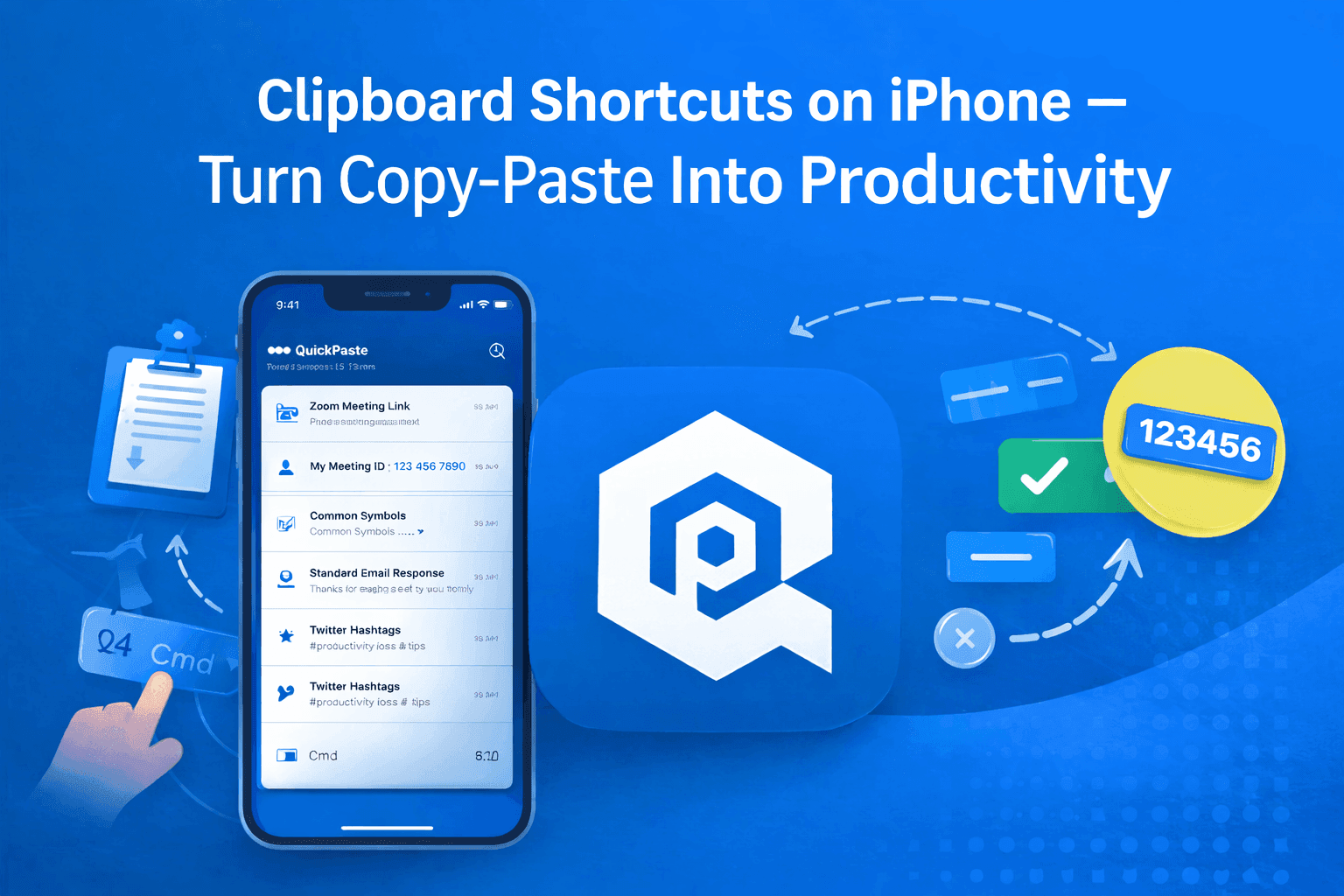
Copying and pasting on iPhone should be fast but It Is NOT!
Every time you copy something new, the last thing disappears. There’s no clipboard history, no clipboard shortcuts, and no keyboard shortcuts to quickly access what you’ve copied before. So you end up switching between apps, re-copying the same text, and breaking your flow again and again.
Why Copy-Paste on iPhone Feels Inefficient
On desktop, keyboard shortcuts make everything faster:
- Command + C / Command + V
- Instant access to copied content
- Smooth, uninterrupted workflow
But on iPhone:
- You can only store one copied item at a time
- There are no clipboard shortcuts
- There are no keyboard shortcuts for clipboard access
- You constantly switch between apps
This breaks your flow and wastes time especially if you’re working, studying, or managing content.
What Are Clipboard Shortcuts?
Clipboard shortcuts are a faster way to access and reuse copied content without repeating the same steps.
Instead of: Copy → switch app → paste → go back → copy again
You get: Save once → access anytime → paste instantly (On iPhone, this isn’t built-in but it can be added).
The Missing Feature: Clipboard History on iOS
One of the biggest limitations of iOS is the lack of clipboard history.
- Every new copy replaces the previous one
- Important text can be lost instantly
- You can’t go back to something you copied earlier
Use QuickPaste for Real Clipboard Shortcuts on iPhone
QuickPaste brings true clipboard shortcuts and a keyboard shortcuts-like experience to iPhone.
Instead of relying on a single copied item, you can:
- Save multiple text snippets
- Access clipboard history anytime
- Paste instantly without switching apps
- Reuse content like a shortcut
- It transforms copy-paste from a basic action into a productivity system.
What is a Clipboard Manager and how to use it?
Real-Life Use Cases
Clipboard shortcuts aren’t just a feature they solve real problems:
- Messaging: Save and reuse replies instantly
- Social Media: Store captions, hashtags, and links
- Workflows: Paste emails, notes, and templates quickly
- Daily Tasks: Copy OTPs, addresses, or repeated text.
- If you repeat any text during the day, this makes a noticeable difference.
Pin frequently used items to save time
Keeping frequently used items saved in one place can make your workflow much smoother and eliminate the need to search or switch between apps repeatedly.
- Links you use often, like Zoom or Teams meeting URLs
- Your personal meeting ID for quick access during calls
- Frequently used replies, canned responses
- Useful commands, notes, or code snippets
- Email templates or signature text you use regularly.
Read also: How a Clipboard History App can improve your productivity?
Final Thoughts
The iPhone clipboard isn’t built for productivity it’s built for simplicity. But your workflow doesn’t have to stay limited. By adding clipboard shortcuts and a keyboard shortcuts-like experience, you can turn a basic feature into something powerful.
QuickPaste makes that possible. Learn more about QuickPaste - Clipboard Manager
Frequently Asked Questions
How do I save frequently used text on iPhone?
You can save frequently used text by using a clipboard manager like QuickPaste. It allows you to store and reuse messages, links, and snippets anytime without copying them again.
Can I organize saved clipboard items on iPhone?
Yes, with apps like QuickPaste, you can organize your saved text into categories or groups, making it easier to find and reuse later.
Is it safe to store frequently used text in a clipboard app?
It depends on the app. A reliable clipboard manager like QuickPaste focuses on privacy and keeps your data secure without unnecessary tracking.
What are pinned items in a clipboard manager?
Pinned items are saved snippets that stay at the top of your clipboard for quick access. They are useful for content you use regularly, like links, responses, or codes.