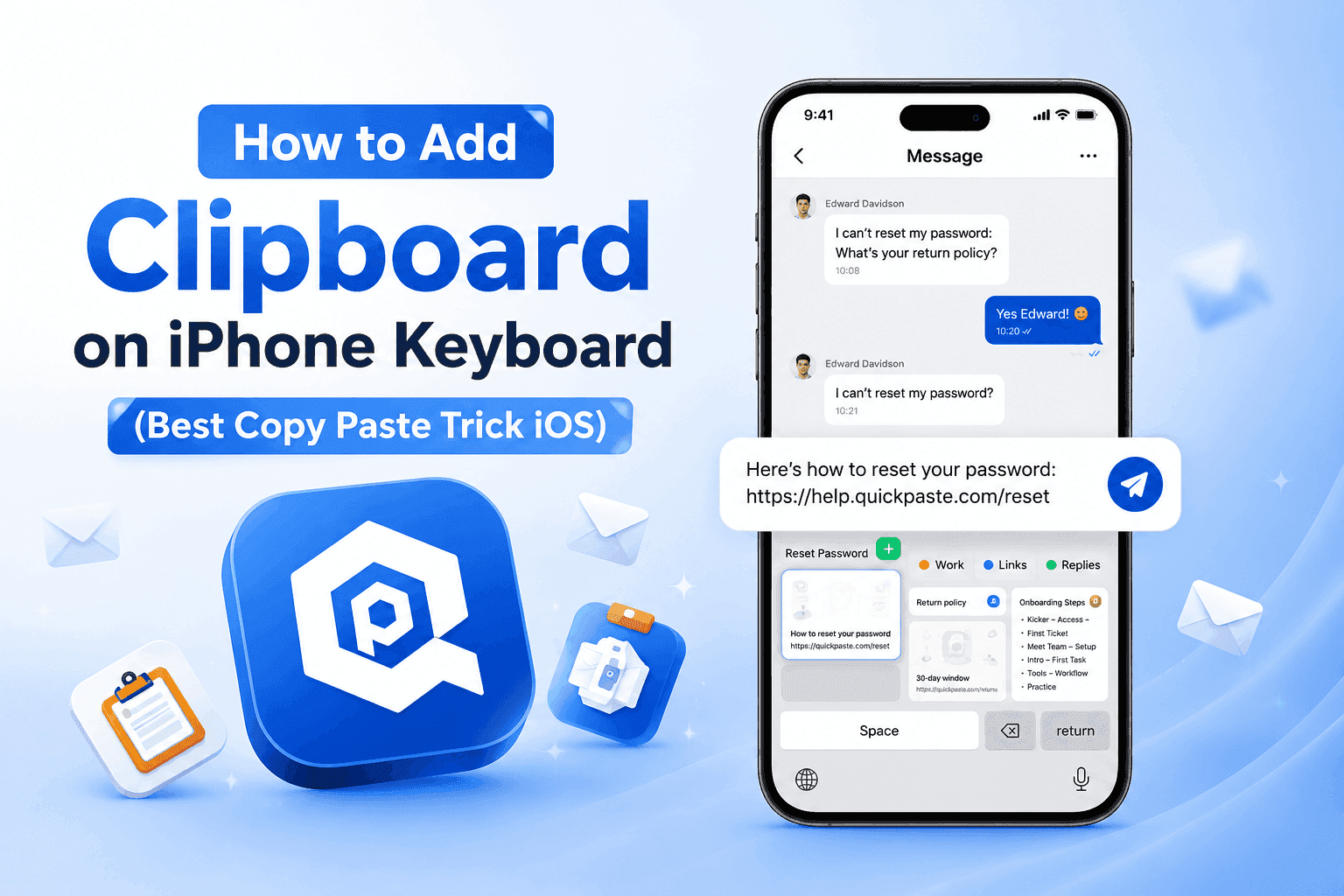
How to Add a Clipboard to Your iPhone Keyboard (Step-by-Step)
iOS has no built-in clipboard history, and the default keyboard has no clipboard panel. To add one, install a clipboard manager keyboard such as QuickPaste, add it in Settings, save what you copy from the Share sheet, and paste your saved items right from the keyboard.
If you have ever copied something important on your iPhone and lost it a moment later, you are not alone. Once you copy new text, the previous item is gone. The good news is that you can add a clipboard-style experience to your keyboard and change how you copy, save, and reuse text.
Can you add a clipboard to the iPhone keyboard?
Not natively. iOS does not provide a visible clipboard history, so the default keyboard cannot show what you copied earlier. The workaround is a third-party clipboard manager that installs as a keyboard. Apps like QuickPaste act as an extended clipboard: they store what you copy, keep it organized, and let you insert it instantly while you type. To understand the limitation first, read how to see clipboard history on iPhone.
Some guides also describe a Back Tap and Shortcuts workaround for saving clipboard history, such as this InsideHook walkthrough. It requires its own setup and is not a keyboard panel, which is why a clipboard keyboard is the more convenient option for everyday typing.
Similar to this: How to Stop the “Allow Paste” Pop-Up on iPhone
How to add a clipboard to your iPhone keyboard (4 steps)
Install a clipboard manager. Download QuickPaste from the App Store. It is built to help you manage copied text, images, and links efficiently.
Add the keyboard. Go to Settings → General → Keyboard → Keyboards → Add New Keyboard and choose Quick Paste. Apple explains the same process in its guide to adding keyboards on iPhone.
Save what you copy. Turn on the Quick Paste Action Extension, then select any text or image, tap Share, and choose Copy to Quick Paste.
Paste from your keyboard. While typing in any app, long-press the language switch key, select Quick Paste, then tap any saved item to paste it instantly into messages, emails, notes, or forms.
Need screenshots or more detail? Follow our full walkthrough: how to use a clipboard keyboard extension on iPhone.
What should you save in your clipboard?
The biggest time savings come from text you type again and again:
Email replies and templates
Addresses
Links and references
Canned replies and saved responses
Short phrases like “On my way” or “Thanks, I’ll check”
Key benefits of using a clipboard manager on iOS
A clipboard solution is not just about convenience. It changes how you use your iPhone every day.
Faster copy and paste: no more switching back and forth to copy the same text repeatedly.
Never lose important text: store multiple copied items instead of relying on one temporary clipboard.
Better organization: keep frequently used replies, templates, and links together and searchable.
Boost productivity: ideal for professionals, students, marketers, and anyone who types a lot.
Secure with Face ID: lock your clipboard history so only you can see your saved text, links, and personal information.
Pro tips to copy and paste faster on iPhone
Save commonly used phrases so they are one tap away
Store multiple versions of important messages
Use clear labels so you can find items quickly
Review and update your saved snippets regularly
Small changes like these can save hours over time.
Is it safe to use a clipboard keyboard?
Keyboards can ask for “Full Access,” which you have to grant explicitly, as Macworld explains in its guide to third-party keyboards. Before you install any clipboard keyboard, check what it stores and where. QuickPaste keeps clipboard data locally on your device, and you can lock your history with Face ID.
Read also: Keyboard Shortcuts vs. Custom Keyboard
Frequently asked questions
Does iPhone have a clipboard history?
No. iPhone stores only one copied item at a time by default.
How can I see my clipboard on iPhone?
You need a third-party clipboard manager such as QuickPaste to view and manage your clipboard history. See how to see clipboard history on iPhone.
Can I use a clipboard inside the iPhone keyboard?
Not directly in the default keyboard. Apps like QuickPaste add a keyboard you can switch to while typing, so you can paste saved items without leaving the app you are in.
Is QuickPaste free?
QuickPaste is free to download on the App Store and does not require an account. It also offers optional in-app purchases.
Does QuickPaste work offline?
Yes. It runs on your device, so your clipboard history is available offline.
Final thoughts
While iPhone does not offer a built-in clipboard history, you are not limited by it. With the right tool, you can add a clipboard to your keyboard and take full control of what you copy. If you want a faster, smarter, and more organized way to copy and paste on iOS, QuickPaste is a simple upgrade that makes a big difference.
Download QuickPaste on the App Store, or learn more about QuickPaste. QuickPaste is a product of Codebuster.