iPhone Clipboard Shortcuts: How to Copy and Paste Faster (and Keep a History)
iPhone has gesture shortcuts for copying and pasting, but no clipboard history. Every new copy replaces the last one. To get true clipboard shortcuts, use a clipboard manager keyboard such as QuickPaste: save once, then paste any saved item from your keyboard without switching apps.
Why does copy and paste on iPhone feel slow?
On a Mac, Command-C and Command-V make copying fast and predictable. On iPhone the actions are quick, but the workflow around them is not. You can hold only one copied item at a time, so a new copy permanently replaces the old one. That leads to the same frustrating loop:
Copy something, switch apps, paste it, then switch back
Re-copy text you already had a minute ago
Lose a link, address, or message the moment you copy something else
This breaks your flow and wastes time, especially if you are working, studying, or managing content all day.
For more details: Sequential Copy and Paste on iPhone, iPad, Mac
What clipboard shortcuts does iPhone already have?
iPhone does include a few shortcuts. They speed up the act of copying, but none of them keep a history of what you copied. Apple describes Universal Clipboard as a way to paste content on another nearby Apple device, and Macworld's guide to the three-finger gestures covers pinch to copy, double pinch to cut, and spread to paste. For more built-in tricks, see MacMost's seven ways to copy and paste on iPhone.
Shortcut | How it works | What it does not solve |
Text selection | Double-tap a word or triple-tap a paragraph, then tap Copy | The new copy replaces the previous one |
Three-finger gestures | Pinch in to copy, pinch in twice to cut, spread out to paste | Takes practice, and still holds only one item |
Universal Clipboard | Copy on one Apple device, paste on another nearby device signed in to the same Apple Account | Content is available for a short time only, so it is not a history |
Clipboard manager keyboard (QuickPaste) | Save what you copy, then paste any saved item from your keyboard | Needs a one-time setup |
What are clipboard shortcuts?
Clipboard shortcuts are a faster way to access and reuse copied content without repeating the same steps.
Without them: copy → switch app → paste → go back → copy again
With them: save once → access anytime → paste instantly
On iPhone this is not built in, but you can add it.
The missing feature: clipboard history on iOS
One of the biggest limitations of iOS is the lack of clipboard history. Every new copy replaces the previous one, important text can be lost instantly, and you cannot go back to something you copied earlier. Our guide on how to see clipboard history on iPhone explains the options in detail.
How to get real clipboard shortcuts on iPhone with QuickPaste
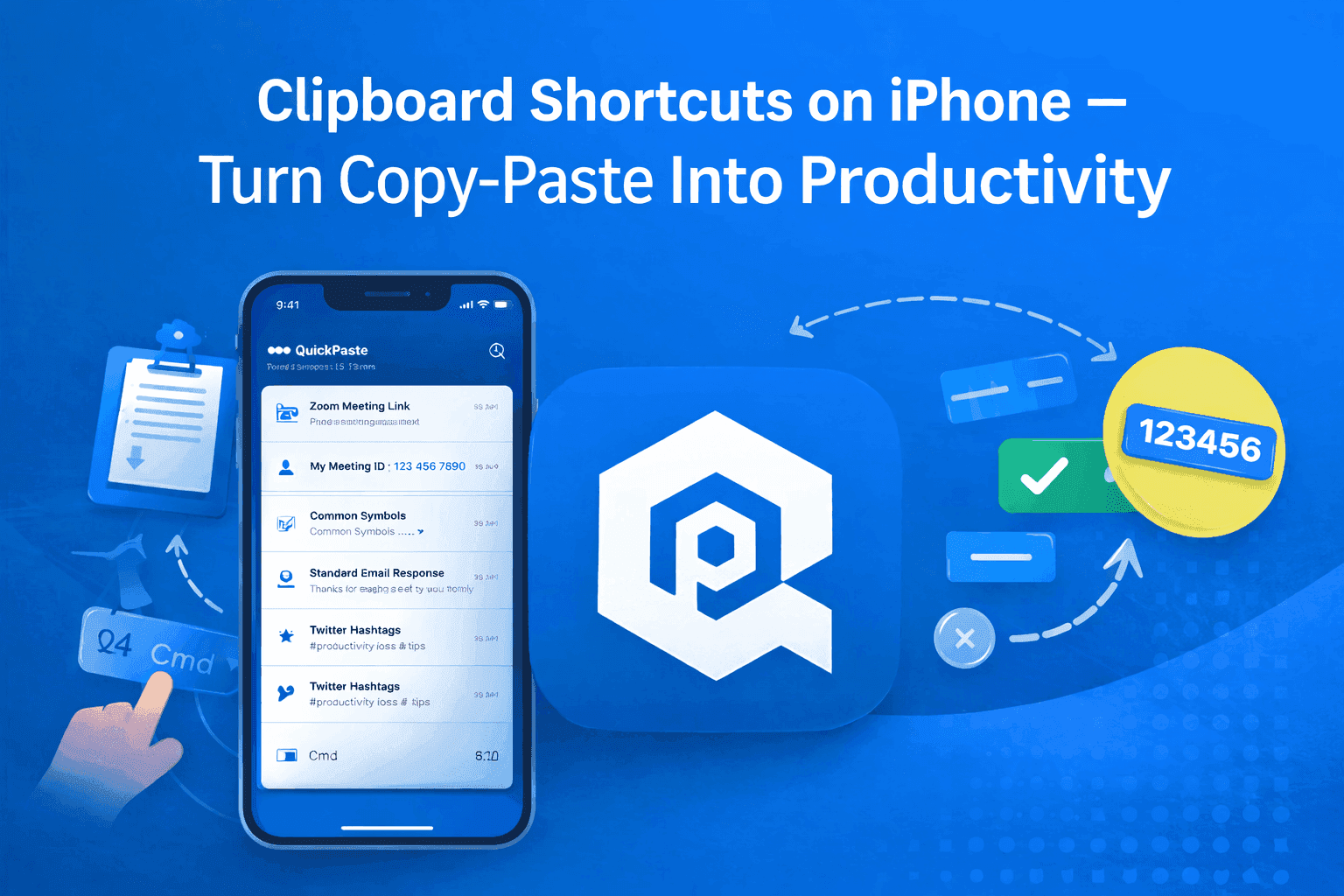
QuickPaste brings a clipboard-history and keyboard-shortcut style experience to iPhone. Instead of relying on a single copied item, you can save text, images, and links in one searchable list, reuse them like shortcuts, and paste without switching apps. It works through two native iOS features:
Save with the Share sheet. Turn on the Quick Paste Action Extension, select any text or image, tap Share, and choose Copy to Quick Paste.
Paste from the keyboard. Add the keyboard in Settings → General → Keyboard → Keyboards → Add New Keyboard (Apple's step-by-step guide). Then, while typing, long-press the language switch key, select Quick Paste, and tap any saved clip.
Get the app on the App Store, or follow the full clipboard keyboard extension walkthrough.
Similar to this: Keyboard Shortcuts vs. Custom Keyboard for Saved Replies
Real-life use cases
Clipboard shortcuts solve everyday problems. If you repeat any text during the day, this makes a noticeable difference.
Messaging: save and reuse replies instantly
Social media: store captions, hashtags, and links
Workflows: paste emails, notes, and templates quickly
Daily tasks: reuse addresses, codes, and other repeated text
What to keep one tap away
Keeping frequently used items saved in one place removes the need to search or switch between apps. Good candidates include:
Links you use often, like Zoom or Teams meeting URLs
Your personal meeting ID for quick access during calls
Frequently used replies and canned responses
Useful commands, notes, or code snippets
Email templates or signature text you use regularly
Who benefits most from a clipboard manager?
Sales and support teams: canned responses, pricing details, and product links
Content creators and marketers: captions, hashtags, and campaign links
Students: quotes, references, and notes
Developers: code snippets and terminal commands
Freelancers and professionals: proposals, templates, meeting links, and client messages
Is it safe to store text in a clipboard app?
It depends on the app, so check where your data is stored and whether you can lock it. Keyboards can request “Full Access,” which you must grant explicitly, as Macworld explains. QuickPaste stores clipboard data locally on your device and lets you protect your history with Face ID.
Frequently asked questions
Does iPhone have clipboard shortcuts?
Yes. iPhone supports text selection gestures and three-finger copy, cut, and paste gestures. It does not have a clipboard history, so each new copy replaces the last item.
How do I save frequently used text on iPhone?
Use a clipboard manager like QuickPaste. Save messages, links, and snippets from the Share sheet, then paste them anytime from the keyboard without copying them again.
Can I organize saved clipboard items on iPhone?
With QuickPaste, text, images, and links are kept together in one searchable list, and you can organize frequently used replies, templates, and links within your clipboard history.
Does Universal Clipboard keep a history?
No. It moves your latest copied item between nearby Apple devices for a short time, according to Apple Support. For a lasting history, use a clipboard manager.
Is it safe to store frequently used text in a clipboard app?
It depends on the app. QuickPaste keeps your data on your device and supports Face ID protection, with no account required.
Is QuickPaste free?
QuickPaste is free to download on the App Store and does not require an account. It also offers optional in-app purchases.
Final thoughts
The iPhone clipboard is built for simplicity, not productivity. But your workflow does not have to stay limited. By adding a clipboard history and a keyboard-based way to reuse what you copy, you can turn a basic feature into something powerful.
Download QuickPaste on the App Store or learn more about QuickPaste.