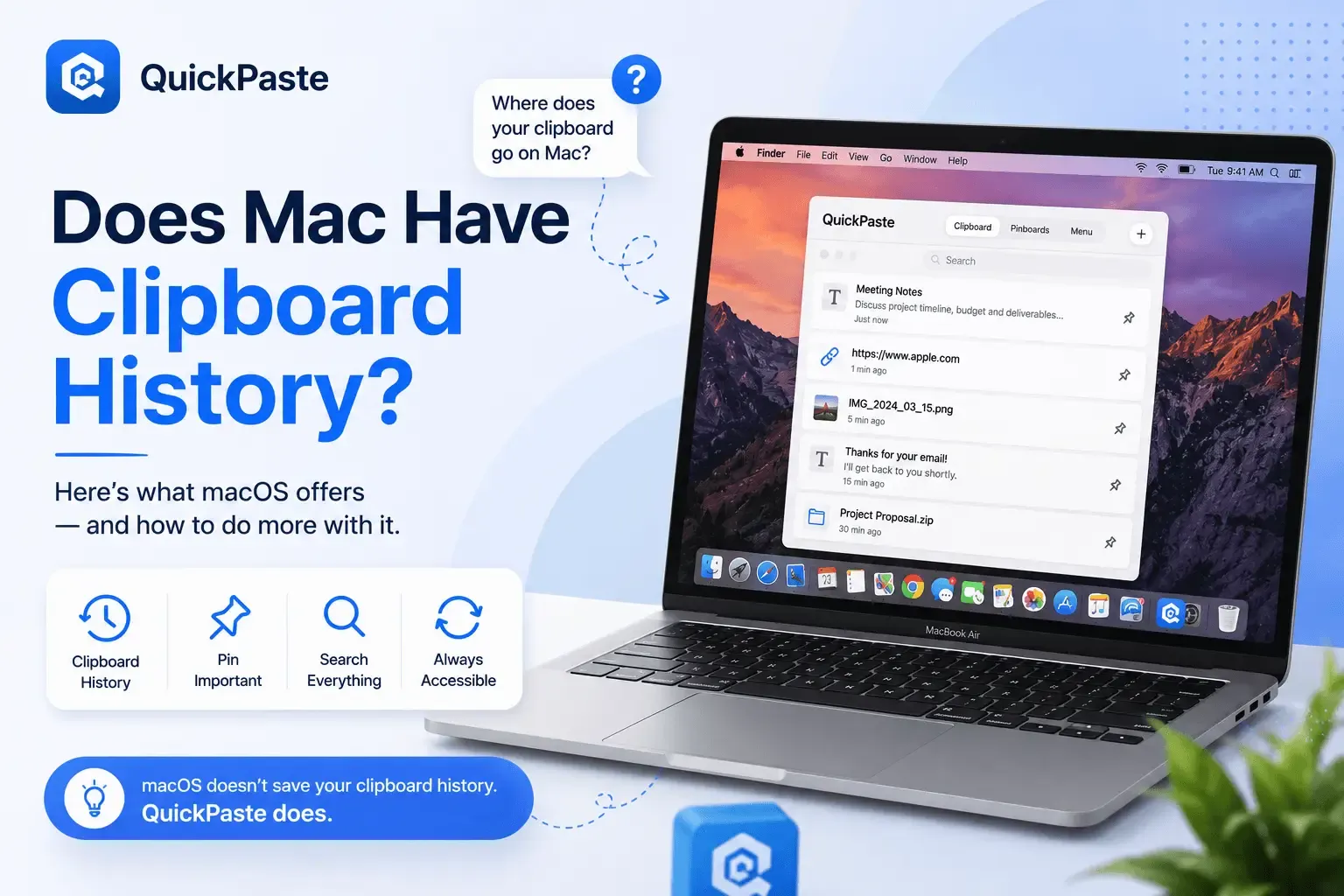
Does Mac Have Clipboard History? Here's How to Use It
Yes, as of macOS Tahoe - Mac has a real clipboard history built into Spotlight, though it's easy to miss if you haven't used Spotlight's search panel lately. Press Command-Space to open Spotlight, then click the Clipboard icon (or press Command-4) to see and search everything you've recently copied, not just the last item.
This is newer than a lot of people realize, including a lot of existing articles on this exact question — many were written before Apple added it and still claim Mac clipboard history doesn't exist at all. Here's how to actually use it, what it doesn't do, and when you'll want something more.
Read also: Best Clipboard Manager App for iPhone in 2026?
How to View Clipboard History on Mac (Spotlight Method)
- Open Spotlight — press Command-Space bar anywhere on your Mac.
- Open the Clipboard panel — click the Clipboard icon to the right of the search field, or press Command-4.
- Search your history — type any part of what you're looking for in the search field.
- Copy an old item — click the copy icon next to it, or select it and press Command-C, then paste as usual with Command-V.
- Clear your history — click the More button next to the search field and choose Clear History.
Full steps are also documented directly by Apple: Search your Clipboard history in Spotlight on Mac. Worth noting Apple's own caution here — since your entire recent clipboard is visible in one place, avoid leaving passwords or sensitive account numbers sitting there longer than necessary.
What Spotlight Clipboard History Doesn't Do
It's a genuine improvement over having nothing, but it's built for quick recall, not for managing a clipboard as a workflow tool. A few real gaps:
- No organization. Everything sits in one flat, searchable list — no folders, no pinning your most-used items, no separating work from personal.
- Mac-only. It doesn't sync to iPhone or iPad. That's a separate Apple feature called Universal Clipboard, which only carries the single most recent item and requires both devices nearby with Bluetooth and Wi-Fi on — see Apple's guide to copying and pasting between devices for how that works.
- No per-item security. Sensitive items sit in the same list as everything else, with no way to lock an individual entry.
None of that makes it a bad feature for quickly recovering something you copied five minutes ago, it's genuinely useful and worth knowing about regardless of what else you use. It just tops out quickly if your clipboard is part of an actual daily workflow rather than an occasional "oh wait, what did I just copy" moment.
The Older Way: Finder → Edit → Show Clipboard
Before Spotlight added clipboard history, the only native way to check your clipboard on Mac was Finder → Edit → Show Clipboard — and this still exists. The difference is that it only ever shows the single most recent thing you copied, with no history and no search. If you've seen this method mentioned in older guides, it's the reason those guides describe Mac clipboard as "one item only" — that was accurate before Spotlight's clipboard history existed, and is now the more limited of the two options.
When You Need More Than What's Built In
If your clipboard is doing real work — reused templates, code snippets, things you copy on your iPhone and need on your Mac an hour later — a dedicated clipboard manager fills the specific gaps above: organized history, cross-device sync, and per-item security. QuickPaste runs on Mac, iPhone, and iPad, syncs clipboard history and pinboards across all three via iCloud, and supports Face ID locking on individual items rather than leaving everything in one unsecured list.
Setting Up QuickPaste on Mac
- Download QuickPaste from the Mac App Store.
- Enable automatic clipboard capture so items save as you copy them, without a prompt each time.
- Create pinboards for the categories you use most — work, personal, dev, and so on.
- Face ID–lock anything sensitive as you save it.
- Sign in with the same Apple Account on iPhone and iPad to sync the same history and pinboards across devices.
Frequently Asked Questions
Does Mac have a clipboard manager built in?
Mac has basic clipboard history built into Spotlight (Command-Space, then Command-4), which lets you search and reuse recently copied items. It doesn't include organization features like folders or pinning, or sync to other devices — for that, you need a third-party clipboard manager.
Is Mac's clipboard history synced to iPhone?
No. Spotlight's clipboard history is local to the Mac it's on. Universal Clipboard is a separate Apple feature that carries only the single most recent copied item between nearby Apple devices — it isn't a synced history. A third-party app like QuickPaste is needed to sync full clipboard history across devices.
How do I clear clipboard history on Mac?
Open Spotlight (Command-Space), press Command-4 to open the Clipboard panel, then click the More button next to the search field and choose Clear History.
Can I organize or categorize clipboard items on Mac?
Not with the built-in Spotlight clipboard history — it's a single flat, searchable list. Third-party clipboard managers, including QuickPaste, add pinboards and categories for organizing saved items by project or context.
The Short Version
Mac does have clipboard history now, and it's worth using — Command-Space, then Command-4. For anything beyond quick recall on a single Mac, QuickPaste picks up where it stops: organized, synced across your iPhone and iPad, and secured item by item.
If you're setting this up on iPhone as well, see How to Find Copied Text on iPhone, and if you're new to clipboard managers generally, start with What Is a Clipboard Manager and Why You Need One.