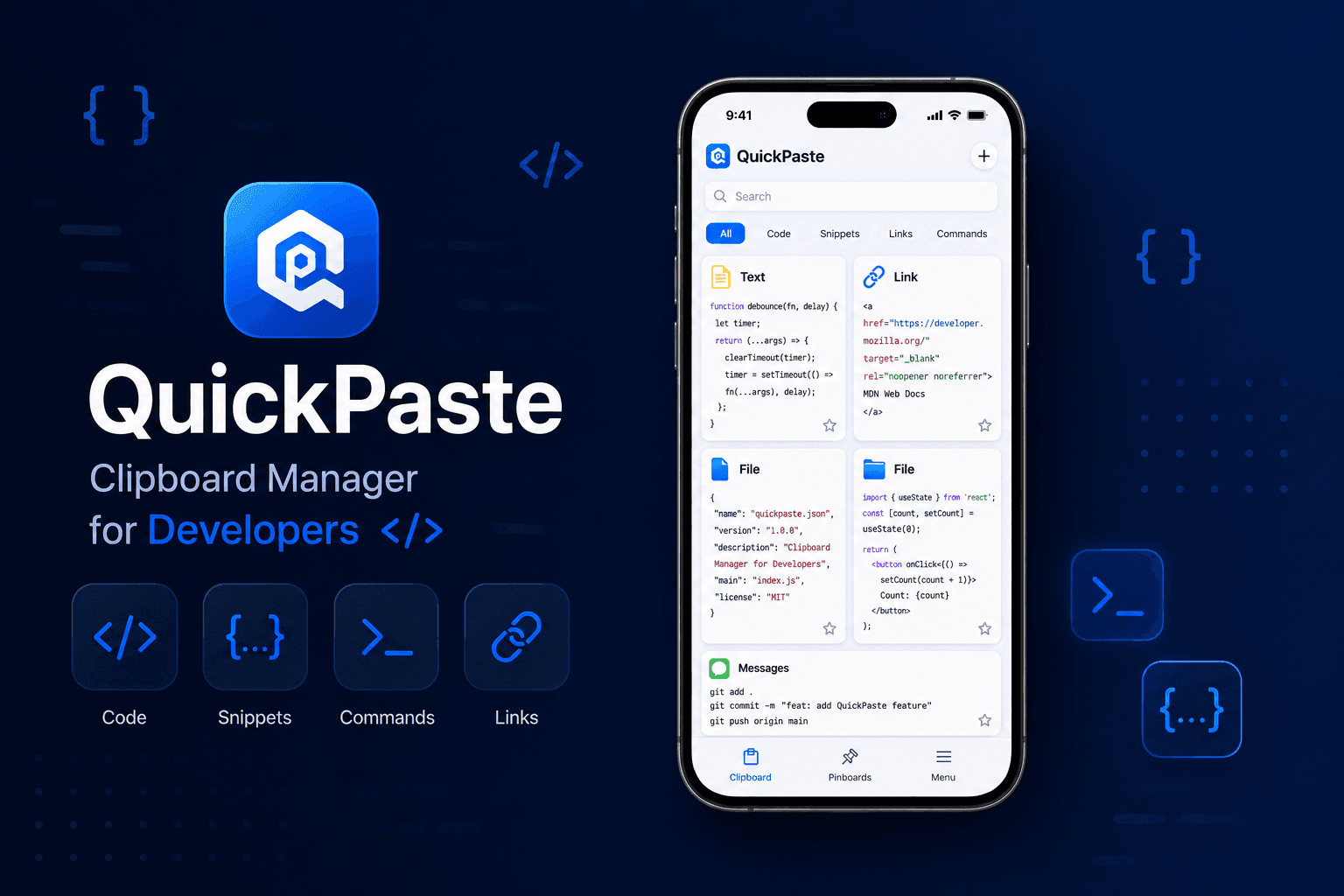
The Developer's Clipboard: How to Stop Losing Code, Commands, and API Keys on iPhone
You SSH into a server from your iPhone to check on a failing deploy. You copy the error line to search it. Then you copy a fix from a Stack Overflow answer. By the time you go back to paste the original error into Slack for your team, it's gone — replaced by whatever you copied last. iOS clipboard has always held exactly one item, and it clears the moment something new gets copied.
For most people that's a minor annoyance. For developers doing real technical work from a phone, reviewing a pull request on the train, debugging a production issue away from your desk, pairing over a call — it's a workflow-breaking limitation. This isn't about finding another snippet manager. It's about the specific, unglamorous problem of not losing what you just copied, thirty times a day, across a dozen different apps.
Why iOS's Clipboard Breaks Down for Technical Work
Apple's clipboard system — technically UIPasteboard was designed for the general case: copy one thing, paste it once, move on. It has no built-in history, no way to save a clip for later, and no distinction between a throwaway phrase and a database connection string. Copy a second thing before you've pasted the first, and the first is simply overwritten with no way to get it back.
Developers run into this more than most users because technical work is inherently multi-clip. You're rarely copying one thing and pasting it once — you're bouncing between a terminal client, a browser tab full of documentation, a chat app, and a code host, often carrying three or four pieces of text you'll need at different points in the same task.
What's Actually on a Developer's Clipboard
A quick audit of what mobile developers copy and paste in a normal day looks nothing like the average user's clipboard:
Terminal commands — the same git, docker, or deploy commands, copied and reused constantly
Environment variables and API keys — tokens pulled from a dashboard to paste into a config file or a teammate's message
Error messages and stack traces — copied out of a log viewer to search or paste into a support thread
JSON payloads and responses — grabbed from an API tool to inspect or share
Code snippets — pulled from Stack Overflow, documentation, or an AI assistant to reference later
SSH and database connection strings — reused across sessions, easy to mistype, expensive to lose
None of these are single-use. Most get pasted more than once, and several — the API keys and connection strings especially — are exactly the kind of thing you don't want sitting around unsecured.
Read also: Why Every Monetised Creator Needs a Clipboard Manager on iPhone?
The Security Problem Nobody Talks About
iOS shows a small banner when an app reads your clipboard, which is Apple's acknowledgment that clipboard content is sensitive and app access to it should be visible to you. But that banner doesn't stop a token from sitting in your clipboard, unencrypted, for anyone with your unlocked phone to paste somewhere it shouldn't go.
This is where a general clipboard manager with actual access control earns its place. QuickPaste locks individual clipboard items behind Face ID, so an API key or a production database URL isn't just saved — it's saved behind the same authentication your banking app uses. That's a meaningfully different security posture than the native clipboard offers, where anything you've copied is one paste away from anyone holding the phone.
A Practical Clipboard Workflow for Mobile Developers
This is the setup that actually holds up across a full day of context-switching between apps:
Turn on automatic clipboard capture. In QuickPaste's settings, enabling automatic capture means every copy is saved to history without a permission prompt interrupting you mid-task — important when you're copying a dozen small things back to back.
Use the paste keyboard instead of switching apps. Touch and hold the globe/language key on the iOS keyboard, select QuickPaste, and your full clipboard history is available directly inside Termius, Working Copy, GitHub Mobile, or whatever you're typing into — no app-switching to go find something you copied five minutes ago.
Pin the commands you reuse daily. Common git commands, your standard deploy sequence, a frequently-used curl request — pin these to a dedicated pinboard so they're one tap away instead of buried in history.
Lock sensitive strings behind Face ID. API keys, tokens, and connection strings should never sit in plain, searchable history. Face ID-lock these items individually as you save them.
Search instead of scrolling. Once history has more than a screen's worth of clips, use search rather than scrolling — searching "docker" or "prod-db" surfaces the exact clip faster than hunting through a timeline.
What This Looks Like in Practice
Picture a production alert coming in while you're away from your laptop. You open Termius on your phone, SSH into the affected server, and copy the relevant lines out of the log. You switch to a browser to search the error, copy a suspected fix from a forum thread, then switch again to paste the original error into your team's Slack channel for visibility — except by now the native clipboard has cycled through two or three other things and the original error is gone.
With clipboard history running, none of that is lost. You pull the original log line back up from history, paste it into Slack, then pull up the fix you copied a minute later and paste that into GitHub Mobile as a comment on the relevant PR. The task that would have meant re-opening the SSH session just to re-copy the error line instead takes one search and one tap.
Where a General Clipboard Manager Fits vs. a Dedicated Snippet Library
It's worth being direct about what this solves and what it doesn't. If you maintain a large, organized library of reusable code — hundreds of snippets across a dozen languages, with syntax highlighting and folder structures — a dedicated code snippet manager built for that purpose is still the right tool for that specific job.
What QuickPaste solves is the messier, higher-frequency problem sitting next to that: the constant, cross-app shuffling of commands, tokens, logs, and half-finished thoughts that make up the rest of a mobile developer's day. It's not trying to be your snippet library. It's trying to make sure nothing you copy in the next ten minutes disappears before you get to paste it.
Frequently Asked Questions
Does the iPhone have a built-in clipboard manager?
No. iOS stores only the single most recent item you've copied, with no history and no way to recover something once you've copied over it. Clipboard history requires a third-party app.
Is it safe to copy API keys or passwords on iPhone?
Copying them briefly is fine, but leaving sensitive strings sitting in an unsecured clipboard app is risky. Use a clipboard manager that supports Face ID or passcode locking on individual items rather than storing everything in plain, unsecured history.
Can clipboard history sync between iPhone and iPad for development work?
Yes — QuickPaste syncs clipboard history and pinboards across devices via iCloud, so a command or key saved on your iPhone is available on your iPad without recopying it.
What's the difference between a clipboard manager and a code snippet manager?
A clipboard manager captures everything you copy, automatically, across every app — useful for the constant, unplanned copying that happens during real work. A snippet manager is a deliberately built, organized library of reusable code you add to on purpose. Many developers end up using both for different jobs.
Building a Clipboard Workflow That Keeps Up
None of this requires changing how you work — it just removes the tax of re-copying things you already found once. If you're doing any real technical work from your phone, QuickPaste is free to set up in a couple of minutes: turn on automatic capture, install the paste keyboard, and Face ID-lock anything you wouldn't want sitting around unprotected.
For the full breakdown of clipboard management on iPhone beyond this developer-specific workflow, see our Clipboard Manager for iPhone: The Complete Guide, and for a closer look at how clipboard history itself works on iOS, see Clipboard History on iPhone.