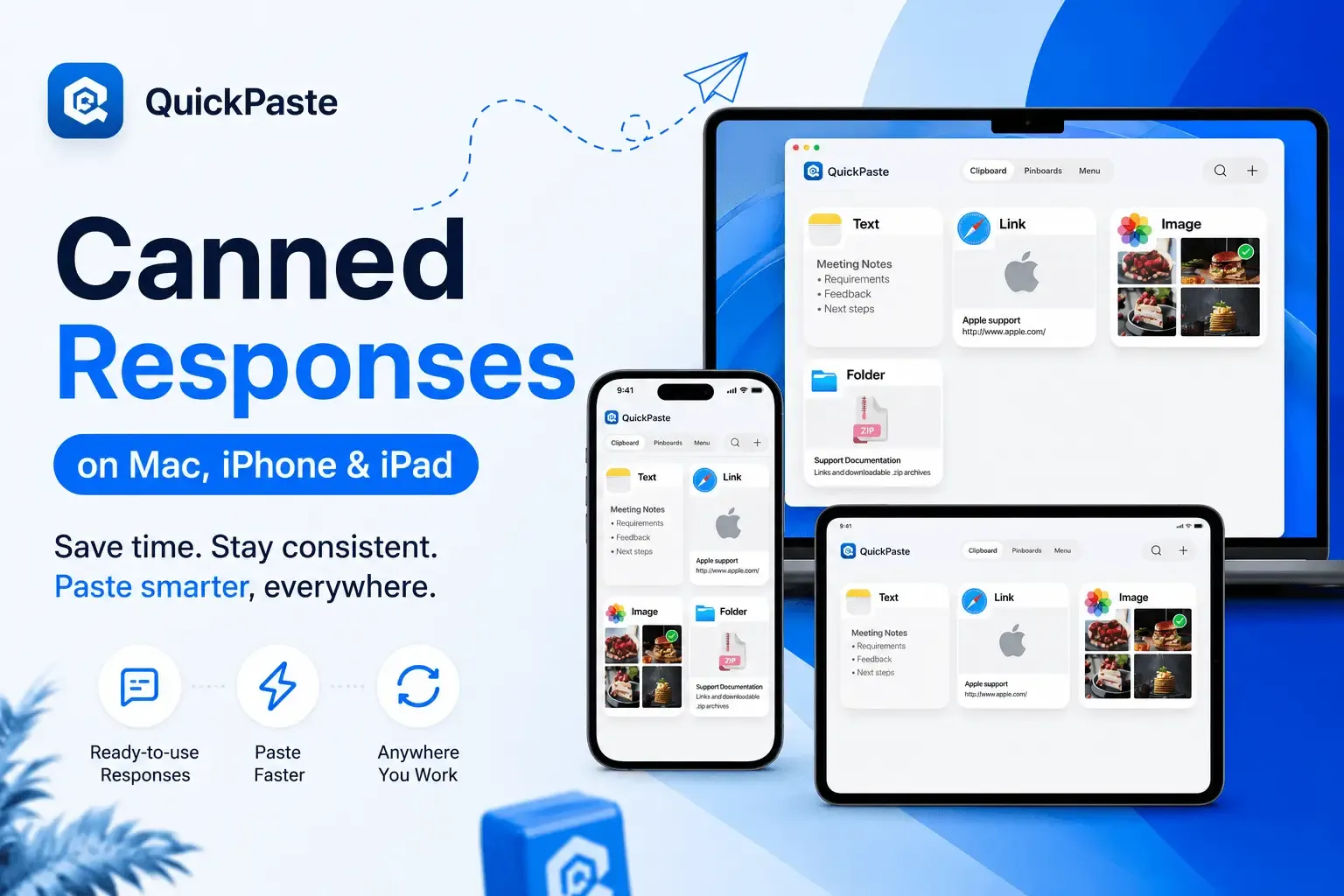
Canned Responses for Support and Sales Teams
A customer's refund question doesn't always land in your help desk. Sometimes it's a Gmail thread, sometimes it's an Instagram DM, sometimes it's a WhatsApp message that comes in while you're at lunch and answering from your phone. Most canned-response tools weren't built for that. They live inside one platform — a Zendesk macro, a Chrome extension, a browser-only snippet tool and the moment the conversation moves anywhere else, you're back to typing the same answer from scratch.
That's the actual problem for a lot of support and sales teams, especially smaller ones: not a lack of templates, but templates that only work in one place.
This is what a clipboard-based approach solves, and doing it across Mac, iPhone, and iPad — the same devices your team is already switching between — is the part most canned-response tools miss entirely.
What Support and Sales Teams Actually Paste, Over and Over
The specific wording varies by company, but the categories are nearly universal:
- Greeting and intro replies — the first response to a new ticket or DM
- Policy answers — refunds, shipping timelines, cancellation terms
- Pricing and plan details — sent identically dozens of times a week
- Escalation and hold language — the wording used to buy time or hand off a case
- Apology and delay templates — for outages, late responses, or known issues
- Sales follow-ups — the post-call recap, the re-engagement nudge, the meeting-link message
None of these change often. What changes is the channel they get sent through — and that's exactly where platform-locked canned-response tools fall short.
Read also: Why Every Monetised Creator Needs a Clipboard Manager on iPhone?
Why Platform-Locked Templates Break Down
Most canned-response features are built into help desk software — Zendesk, Desk365, and similar tools all offer macros, and they work well inside those platforms. The trouble starts the moment a real conversation happens outside them: a DM on Instagram, a message in WhatsApp, a follow-up typed directly into the Notes app before a call. A macro saved in your help desk doesn't follow you there.
Browser extensions solve part of this tools built for managing canned responses across Gmail, GitHub, and Upwork are genuinely useful for web-based work. But they stop at the browser. They don't help inside the native WhatsApp or Instagram app on your phone, and they don't do anything for a sales rep replying from an iPad between meetings.
What About Apple's Built-In Text Replacement?
Apple already ships a free option for this: Text Replacement, found in Keyboard settings on iPhone, iPad, and Mac. Type a short trigger and it expands into the full phrase, and it syncs across devices via iCloud automatically. For a handful of short shortcuts — an email signature, an address it's genuinely enough, and worth setting up regardless of what else you use.
Where it struggles is at team scale: there's no folder structure, no way to search a library of forty templates, no tagging by scenario, and long, multi-line templates are awkward to manage inside a settings screen built for short abbreviations. It's a typing shortcut, not a template library. That gap: an organized, searchable set of reusable responses that works in every app on every device is what a clipboard manager like QuickPaste is actually built for.
Building a Canned-Response Library That Works Everywhere
- Group templates into pinboards by scenario. Create pinboards like "Refunds," "Pricing," "Escalations," and "Sales Follow-Up" instead of one long, unsorted list — the goal is finding the right response in seconds, not scrolling.
- Pin your five most-used replies to the top. Whatever you send most — the greeting, the standard policy answer should be the fastest thing to reach, on every device.
- Use the paste keyboard inside the actual app you're messaging in. On iPhone or iPad, touch and hold the globe key, switch to QuickPaste, and insert a saved reply directly inside Messages, WhatsApp, Instagram, or Gmail, no copying from a separate app first.
- Keep the Mac app open alongside email and Slack. For desk-based work, the same pinboards sync via iCloud, so a template built on iPhone during a commute is already there when you sit down at your Mac.
- Search when a case doesn't match a pin. For anything outside your top templates, search by keyword rather than scrolling a growing history.
What This Looks Like Day to Day
A support agent starts the morning on a Mac, clearing a backlog of email tickets using pinned refund and shipping templates. Mid-morning, a customer question comes in through Instagram DM instead — they switch to their iPhone, pull up the same "Refunds" pinboard through the paste keyboard, and reply without retyping anything or hunting for where that wording lives. That afternoon, a sales rep preparing for an in-person meeting glances at their iPad, pulls a follow-up template from the "Sales Follow-Up" pinboard, and has it ready to send the moment the meeting ends — same library, three devices, zero retyping.
Frequently Asked Questions
Are canned responses unprofessional?
No, used well they're the opposite. The goal is a strong starting draft you personalize with the customer's name and specific detail, not a robotic copy-paste. Teams that skip templates entirely tend to have slower response times and less consistent answers, not more personal ones.
Can I use a clipboard manager instead of help desk software for canned responses?
For solo freelancers, small teams, or anyone answering across channels a help desk doesn't cover (DMs, WhatsApp, personal email), yes a clipboard manager with organized pinboards covers the same core need without a help desk subscription. Larger teams already running Zendesk or a similar platform will likely still want macros there for ticket-specific data, and can use a clipboard manager for everything outside it.
Do canned responses sync between Mac, iPhone, and iPad?
With QuickPaste, yes — pinboards and saved templates sync across all three via iCloud, so a response built on one device is available on the others immediately.
Is it safe to store customer information in a clipboard manager?
Avoid saving anything containing real customer data in a reusable template — templates should be generic, with placeholders you fill in per conversation. For anything that does need to be saved temporarily, such as an account number you're actively working with, use an app that supports Face ID locking on individual items rather than leaving it in plain, unsecured history.
One Library, Every App You Actually Work In
The channel a customer or prospect reaches out through shouldn't decide whether you have your best answer ready. Setting up pinboards in QuickPaste takes a few minutes and works the same way whether you're replying from a Mac at your desk or an iPhone between meetings.
If you're new to clipboard managers generally, start with What Is a Clipboard Manager and Why You Need One. If you're comparing QuickPaste against other clipboard apps before committing, see QuickPaste vs Paste vs PastePal: Best Clipboard Manager, and for another angle on cross-app clipboard workflows, see Clipboard Manager for Developers on iPhone.
Download on iPhone, Mac & iPad