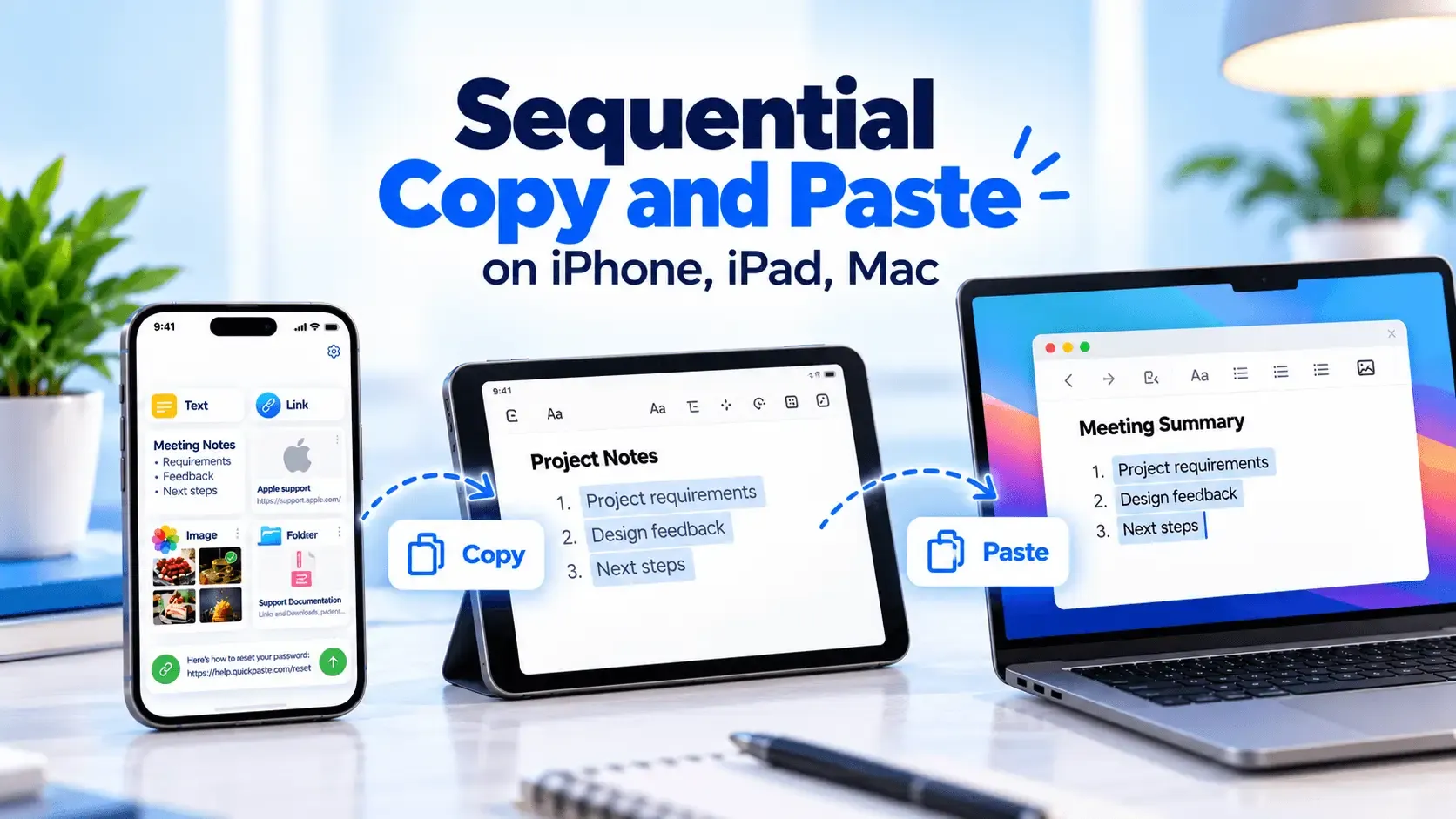
Sequential copy and paste means copying several separate items in order — a name, then a phone number, then an address — and pasting each one back into its own field, in the same order you copied them. It's a common need for filling out forms, entering repeated data, or moving a list of items from one place to another one field at a time. None of Apple's platforms support this natively, since the clipboard on iPhone, iPad, and Mac only ever holds a single item.
What Sequential Copy and Paste Actually Means
A typical example: you have a document with a name, phone number, and email address, and you need to enter all three into separate fields on a form. The sequential approach is to copy all three first — name, then phone, then email, in that order — and then paste each one into its matching field afterward, without switching back and forth to the source document between every single field.
This only works if something remembers the order you copied things in. On its own, none of Apple's devices do this — as covered in Apple's own guide to selecting and editing text, copying something new always replaces whatever was on the clipboard before, on iPhone, iPad, and Mac alike.
Read also: How to Copy Multiple Items on iPhone at Once
How to Do Sequential Copy and Paste with QuickPaste
QuickPaste keeps every item you copy in a running history, in the order you copied it — which is what makes a sequential workflow possible in practice, even without a dedicated auto-advancing queue. Copy your three items in order, then pull them back out in that same order when you're ready to paste.
- Copy your items in order — name, then phone number, then email, copying each normally.
- Open the destination field and bring up the paste keyboard — touch and hold the globe key, select QuickPaste.
- Paste the first item from the top of your history.
- Move to the next field and paste the second item, then the third — each is still sitting in history, in the order you copied them.
- Pin the sequence to a pinboard if it's a set of fields you'll fill out repeatedly, so you're not hunting through general history each time.
This is manual rather than an automatic one-tap advance — you're selecting each item from an ordered, searchable list rather than pressing a single key to move to the next item in a queue. For most real form-filling and repeated data entry, that difference rarely matters in practice, since the items are exactly where you left them, in order, whenever you're ready for them.
Doing This Across iPhone, iPad, and Mac
Because clipboard history and pinboards sync via iCloud, a sequence copied on one device is available in the same order on the others. Copy three items on your iPhone during a commute, and they're sitting in the same order on your Mac when you sit down to fill out the actual form — the sequence doesn't need to be copied all over again just because you switched devices.
How This Compares to Dedicated Sequential Paste Tools
Mac users may already know Sequential Paste as a specific, named feature — Pastebot's Sequential Paste is the best-known example, letting you build a queue and paste each item automatically with a single keyboard shortcut, advancing to the next item each time you press it. It's a genuinely well-built, purpose-made feature — and it's Mac-only software, without a version that runs natively on iPhone or iPad.
QuickPaste trades that single-key auto-advance for something Pastebot doesn't offer: the same ordered history, searchable and available, natively, across iPhone, iPad, and Mac. Which trade-off matters more depends on the workflow — a single-key advance is faster for rapid, repetitive data entry on a Mac; cross-device availability matters more when the copying and pasting happen on different devices at different times.
Let's noodle: The Black Friday Price Illusion
Where This Matters Most
- Filling out forms with the same handful of fields repeatedly — applications, order details, intake forms.
- Data entry from a document or spreadsheet into a system that doesn't support copy-pasting an entire row at once.
- Students and researchers moving a quote and its citation into a document as a pair, in order, without losing track of which goes where.
- Developers entering a sequence of configuration values — host, port, key — into separate fields during setup.
Check this Productivity tool: Australian Coin Value Checker: Identify Your Coins Free
Frequently Asked Questions
What is sequential paste?
Sequential paste is the practice of copying multiple items in a specific order and pasting them back in that same order, typically into a series of separate fields. Some Mac apps offer it as a dedicated feature with an auto-advancing queue; more generally, it just means your clipboard tool remembers the order you copied things in.
Does iPhone support pasting multiple items in order?
Not natively — iPhone's built-in clipboard holds a single item and has no memory of order. A clipboard manager with ordered history, such as QuickPaste, adds this.
Can I do sequential copy and paste across iPhone, iPad, and Mac?
Yes, with QuickPaste — clipboard history and pinboards sync via iCloud, so a sequence copied on one device stays in the same order on the others.
Is QuickPaste's sequential paste automatic, like Pastebot's?
Not in the same way. Pastebot offers a dedicated, auto-advancing queue on Mac that pastes the next item with a single keystroke. QuickPaste keeps items in ordered, searchable history that you select from manually via the paste keyboard — the practical outcome is similar for most form-filling and repeated data entry, but the interaction is different.
The Short Version
None of Apple's devices support sequential copy and paste on their own — the native clipboard only ever holds one item, with no memory of order. QuickPaste adds that memory through ordered history and pinboards, synced across iPhone, iPad, and Mac, so a sequence copied on one device is ready in the same order wherever you paste it next.