8 iPhone Productivity Tips That Actually Save Time
Most iPhone productivity advice fails for one reason: it asks you to do more. Download another app, build another routine, memorize another setting. None of it sticks.
Real productivity comes from removing the small frictions you repeat all day, like retyping the same reply, hunting for a link, or swiping through five screens to find an app. Each costs a few seconds, but they add up to hours.
These eight iPhone tips each take under two minutes to set up. Each one comes with steps, a screenshot to take, and when to use it.
Handpicked for you: How to Copy Multiple Items on iPhone at Once
1. Use Text Replacement for Repeated Messages
Text Replacement turns a short shortcut into a full phrase, so you stop typing the same things.
Steps
- Open Settings → General → Keyboard → Text Replacement.
- Tap + in the top-right corner.
- Enter the full text under Phrase and a short trigger under Shortcut (for example, “addr” for your address).
- Tap Save.
When to use it: Addresses, email sign-offs, “thank you” replies and any phrase you type more than twice a week. Apple explains the feature in its iPhone User Guide.
2. Turn On Swipe Typing
Swipe typing lets you slide your finger across the letters instead of tapping each one.
Steps
- Open Settings → General → Keyboard.
- Turn on Slide to Type.
- In any text field, slide from letter to letter and lift your finger. Spaces are added automatically.
When to use it: Quick replies, casual messages and one-handed typing while commuting or carrying something.
3. Use Spotlight Search as Your Command Center
Spotlight is faster than browsing through screens and folders.
Steps
- Swipe down from the middle of your Home Screen.
- Type a few letters of an app, contact, note or setting.
- Tap the result to jump straight to it.
When to use it: Opening apps buried in folders, finding a contact, or reaching a setting without digging through menus.
4. Keep Frequently Used Links and Notes in One Place
If you keep searching for meeting links, documents or addresses, give them a permanent home.
Steps
- Open Notes and create a note called “Quick Links”.
- Paste your meeting links, document URLs and addresses into it.
- Swipe right on the note and tap the pin icon to keep it at the top.
When to use it: Recurring meetings, frequently shared documents, Wi-Fi details and anything you currently search for more than once.
5. Use a Clipboard Manager to Save and Reuse Text
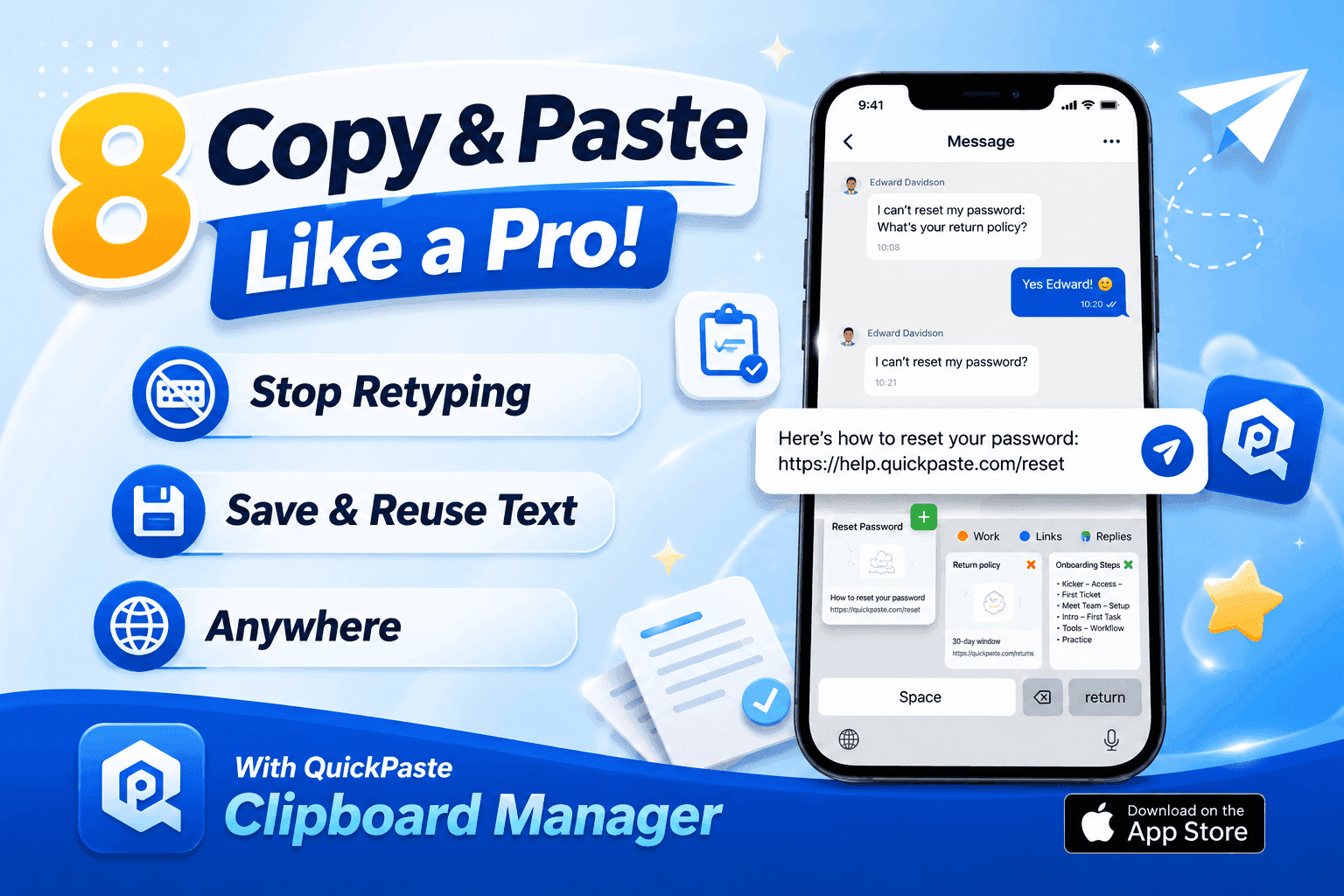
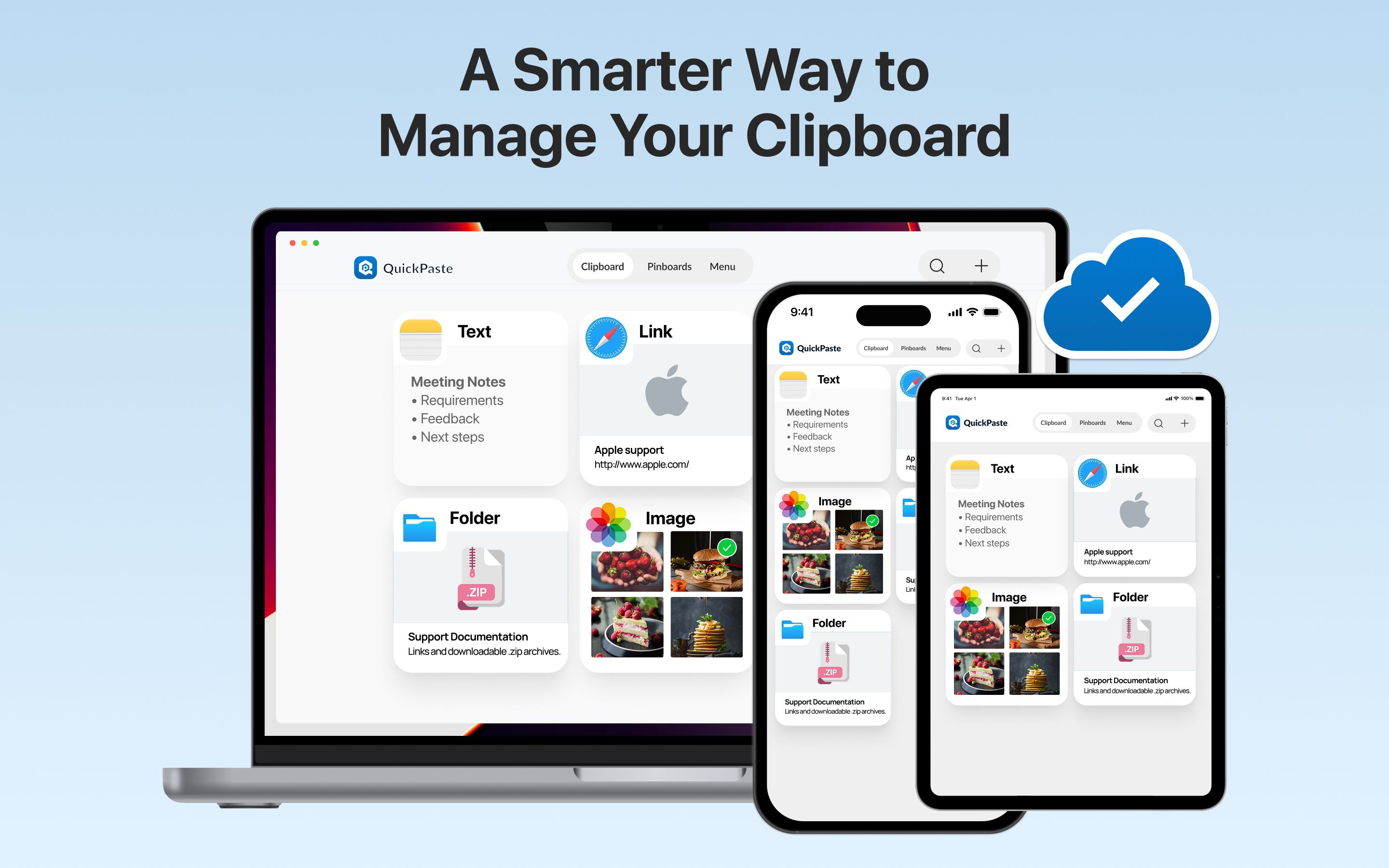
The iPhone clipboard holds only one item at a time, so every new copy erases the last. A clipboard manager for iPhone like QuickPaste keeps your saved text ready to paste in one tap.
Steps
- Download QuickPaste for iPhone.
- Add its keyboard under Settings → General → Keyboard → Keyboards → Add New Keyboard.
- Save your most-used text, such as replies, links and addresses.
- In any app, switch to the QuickPaste keyboard and tap a saved item to paste it.
When to use it: Email replies, canned responses, saved replies for customers, and long links or text blocks that are too big for Text Replacement.
Read also: How to Save Frequently Used Text on iPhone
6. Organize Your Home Screen by Usage
Most people arrange apps by color or category. For speed, arrange them by how often you use them.
Steps
- Move your most-used apps to the first Home Screen page.
- Touch and hold a rarely used app and tap Remove App → Remove from Home Screen. The app stays in your App Library.
- Swipe past your last page to open the App Library when you need it.
When to use it: Whenever you catch yourself swiping through pages to find an app. A quick cleanup once a month keeps it fast.
7. Use Siri for Quick Tasks
Siri is at its best for short, single-step tasks where tapping through apps takes longer than talking.
Steps
- Say “Hey Siri” or hold the side button.
- Give one clear command, such as “Remind me to call Ali at 5 p.m.” or “Text Sara I’m on my way.”
- Confirm when Siri asks.
When to use it: Reminders, timers, messages and opening apps, especially when your hands are busy.
8. Organize Apps with Smart Stacks
Smart Stacks let you swipe through several widgets in the space of one.
Steps
- Touch and hold an empty area of your Home Screen and tap +.
- Choose Smart Stack and tap Add Widget.
- Swipe up or down on the stack to move between widgets.
When to use it: To see your calendar, tasks and weather at a glance without opening three apps.
Bonus: Combine These Tips for Maximum Efficiency
The biggest gains come from stacking these tips:
- QuickPaste + Text Replacement: Use Text Replacement for short phrases and QuickPaste for longer saved text.
- Focus Mode + Shortcuts: Set up a Work Focus that silences distracting apps, then trigger it automatically with Shortcuts. See Apple’s Focus guide for setup.
Final Thoughts
You don’t need all eight tips today. Start with two or three. If you want the biggest immediate impact, begin with a clipboard manager like QuickPaste, because retyping and re-copying text is one of the most common daily frustrations on iOS.
FAQs
What is the best productivity app for iPhone?
It depends on your workflow, but a clipboard manager like QuickPaste saves time for anyone who types or pastes the same text regularly.How can I use my iPhone more efficiently?
Use Text Replacement, Spotlight search, Siri, Smart Stacks and a clipboard manager to cut repeated taps and typing.Does iPhone have a built-in clipboard manager?
No. iOS holds only your most recent copy, so you need an app like QuickPaste to save and reuse multiple items.What is Text Replacement on iPhone?
It’s a built-in keyboard feature that expands a short shortcut into a longer phrase as you type.