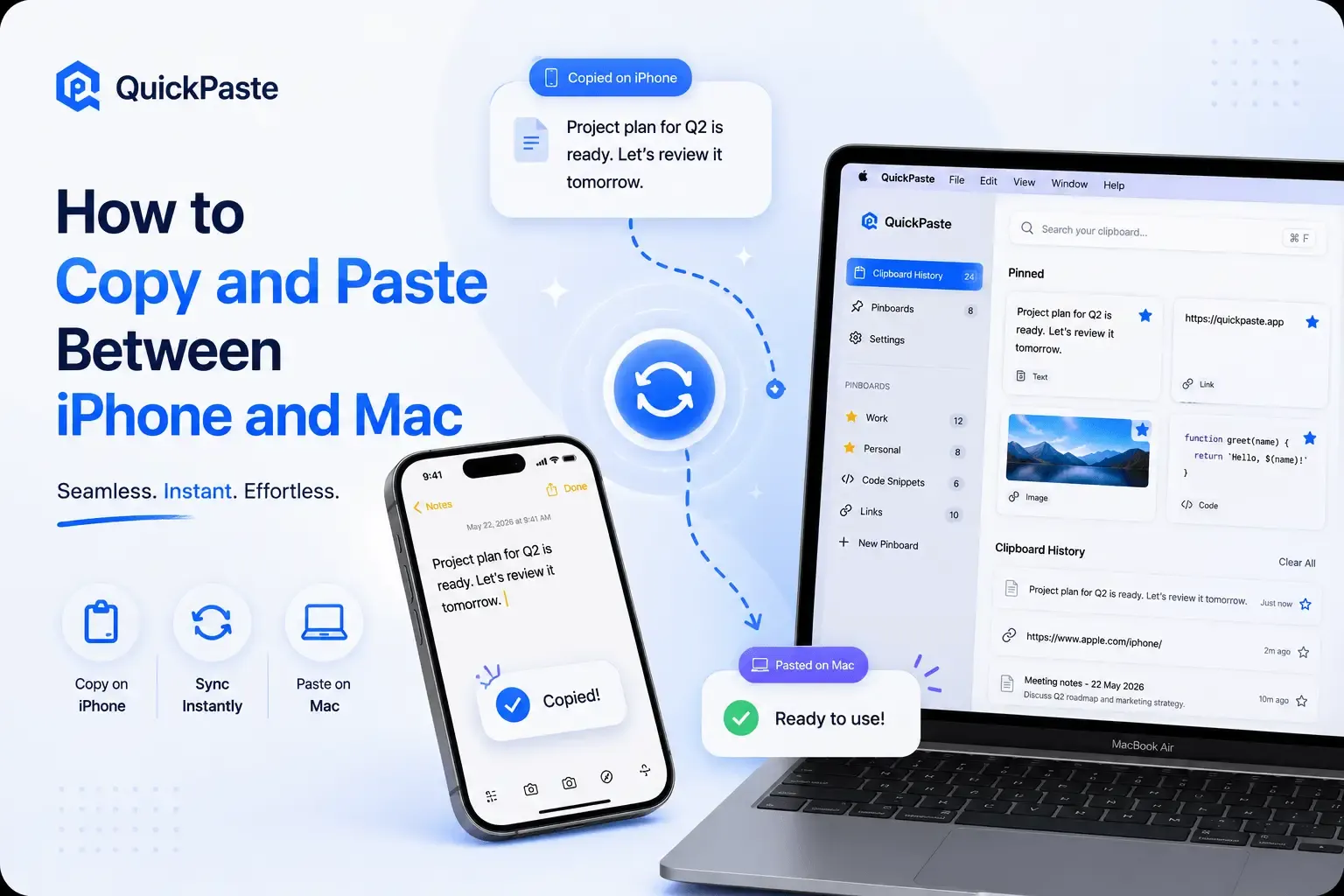
How to Copy and Paste Between iPhone and Mac
There are three real ways to do this, and which one to use depends on what you're moving and how often you need it to work reliably:
- Universal Clipboard — built into iOS and macOS, no app needed, but only ever holds the single most recent thing you copied.
- AirDrop — better for files, photos, and larger content than short text or links.
- A synced clipboard manager — for when you need more than just the last item to carry over reliably.
Here's how each one actually works.
Method 1: Universal Clipboard
This is Apple's built-in way to copy on one device and paste on another, and it requires no app — just a one-time setup.
Requirements
- Both devices are signed in to the same Apple Account
- Wi-Fi and Bluetooth are turned on for both
- Handoff is turned on for both
- The devices are near each other, awake, and unlocked
Setup
- On iPhone: Settings → General → AirPlay & Handoff → turn on Handoff.
- On Mac: System Settings → General → AirDrop & Handoff → turn on "Allow Handoff between this Mac and your iCloud devices."
Using it
- Copy on either device as you normally would — Command-C on Mac, or tap and hold to select and Copy on iPhone.
- Switch to the other device and paste — Command-V on Mac, or tap and hold and select Paste on iPhone.
Full official steps are documented by Apple for both iPhone and Mac. The one limitation worth knowing upfront: Universal Clipboard only ever carries the single most recent thing you copied. Copy something else on either device before you paste, and the original is gone with no way to recover it.
Method 2: AirDrop
For anything larger than a quick bit of text or a link — photos, documents, multiple files at once — AirDrop is generally the better tool, and it doesn't have Universal Clipboard's one-item limitation.
- Make sure Wi-Fi and Bluetooth are on both devices, and AirDrop is set to allow receiving from "Everyone" or "Contacts Only," depending on who's sending.
- Select the file(s) you want to send.
- Tap or click the Share button, choose AirDrop, then select the receiving device.
- Accept on the receiving device when the prompt appears.
AirDrop moves whole files rather than clipboard content, so it's the right tool when you're sending something to open and use, not something you're about to paste into a text field.
Read also: Which Clipboard Manager Should You Choose?
If Universal Clipboard Isn't Working
This is common enough to be worth a dedicated checklist. In order of how often each one is actually the culprit:
- Confirm both devices are signed in to the same Apple Account — the single most common cause.
- Check Wi-Fi and Bluetooth are on for both, not just one.
- Recheck Handoff is enabled on both devices — it's easy for this to get switched off during a settings reset or OS update.
- Make sure devices are near each other, awake, and unlocked — Universal Clipboard doesn't work over distance or with a locked screen.
- Toggle Handoff off and back on both devices, or restart both — this resolves most persistent glitches.
- Check VPN settings if you use one — a VPN configuration that blocks local networking can interfere with Continuity features generally.
Method 3: A Synced Clipboard Manager
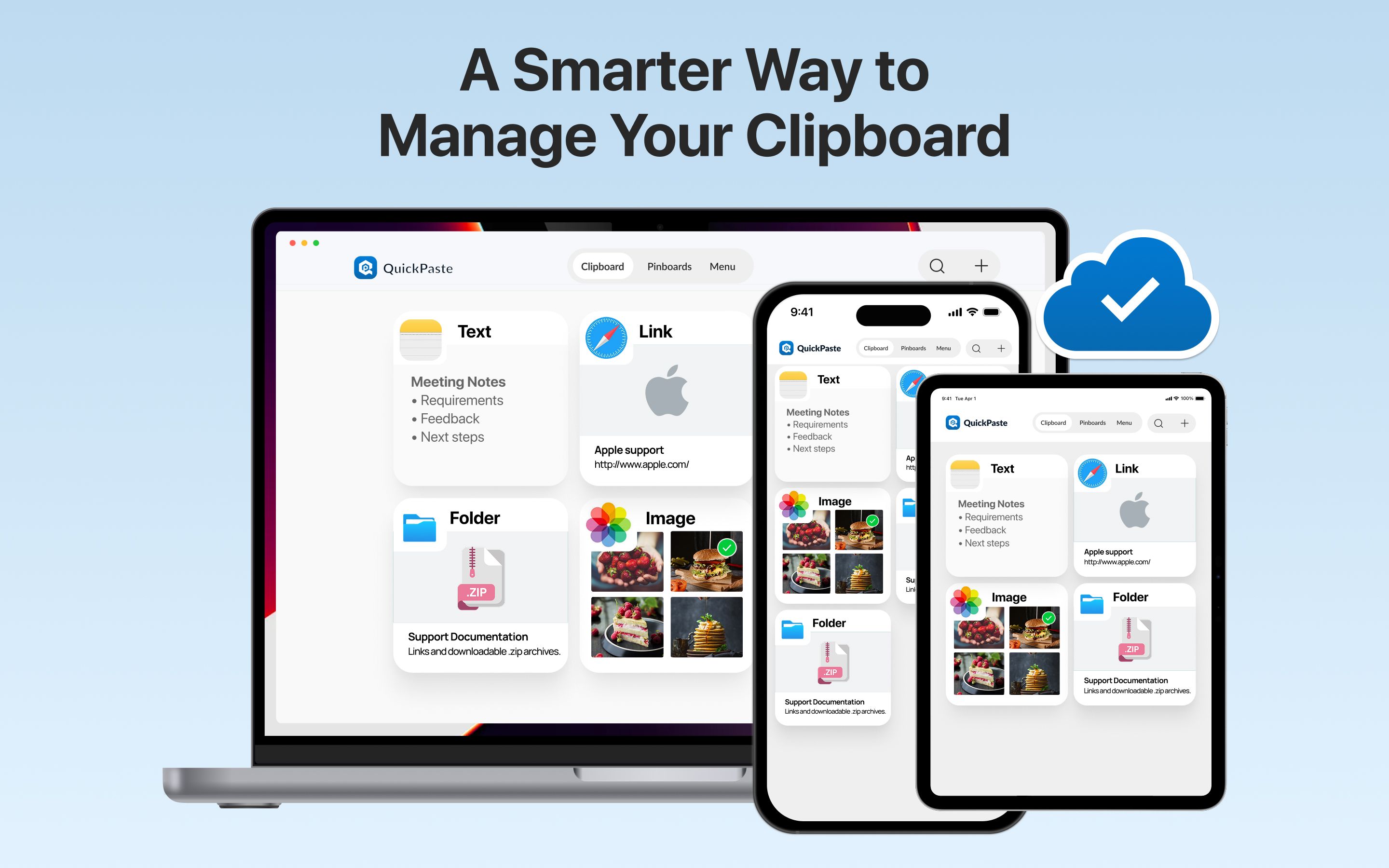
Universal Clipboard is genuinely useful for a single hand-off, but it forgets everything the moment you copy your next item, on either device. If you regularly need to reuse something from earlier — a template, a link from this morning, a command you copied yesterday — a clipboard manager with real cross-device sync solves this structurally instead of one hand-off at a time. QuickPaste keeps a full, searchable clipboard history and organized pinboards synced across iPhone, iPad, and Mac via iCloud, so the item you copied on your phone this morning is still there on your Mac tonight, not just for the next thirty seconds.
Which Method Should You Actually Use
A quick way to decide:
- Copying one thing right now, once → Universal Clipboard is the fastest option and needs no app.
- Sending files, photos, or documents → AirDrop.
- Reusing things across sessions, or needing history and organization → a synced clipboard manager.
Frequently Asked Questions
Do I need an app to copy and paste between iPhone and Mac?
No — Universal Clipboard is built into iOS and macOS and requires only a one-time Handoff setup, no third-party app needed. An app becomes useful once you want history, organization, or reliability beyond a single hand-off.
Why did my copied item not show up on my other device?
Almost always one of the Continuity requirements isn't met — different Apple Account, Wi-Fi or Bluetooth off, Handoff disabled, or the devices aren't near each other and unlocked. Work through the troubleshooting checklist above in order.
Can I copy and paste files, not just text, between iPhone and Mac?
Universal Clipboard supports text, images, photos, and video. For files specifically — documents, larger media, multiple items at once — AirDrop is the more reliable choice.
Does Universal Clipboard keep a history I can go back to?
No. It only ever holds the single most recent item copied on either device. For a searchable history across devices, you need a dedicated clipboard manager.
The Short Version
For a one-off copy right now, Universal Clipboard is built in and takes a minute to set up. For files, use AirDrop. For anything you'll want to find and reuse later, QuickPaste keeps the full history synced across every device instead of just the last thing you copied.
For more on how clipboard history and pinboards work on Mac specifically, see Clipboard on Mac: Clipboard History & Pinboards, and if content keeps disappearing before you get to paste it, see Why Does My Copied Text Disappear on iPhone?