Why Most iPhone Productivity Tips Don’t Work?
Everywhere you look, there are “productivity hacks.”
Turn on this setting → Download that app → Follow this routine...
But most of them don’t stick. Why?
Because real productivity doesn’t come from doing more. It comes from removing small daily frictions. The kind you don’t notice — but repeat all day.
This guide focuses on practical iPhone tips that actually make your daily workflow faster and smoother.
Use Text Replacement for Repeated Messages
If you type the same things often (emails, replies, links), stop typing them manually.
Go to: Settings → General → Keyboard → Text Replacement
Create shortcuts like: “addr” → your full address, “ty” → thank you message (this saves time every single day).
The iPhone keyboard supports swipe typing.
Instead of tapping each letter, just slide your finger across the keyboard.
It’s faster for:
- quick replies
- casual messages
- one-handed use
Use Spotlight Search as Your Command Center
Swipe down on your home screen. You can:
- open apps instantly
- search contacts
- find notes
- access settings
Most people waste time navigating apps when search is faster.
Save Frequently Used Links and Notes
If you keep searching for the same things: meeting links, documents, addresses
Save them in one place. This avoids repeated searching and copying.
Use a Clipboard Manager to Save & Reuse Text
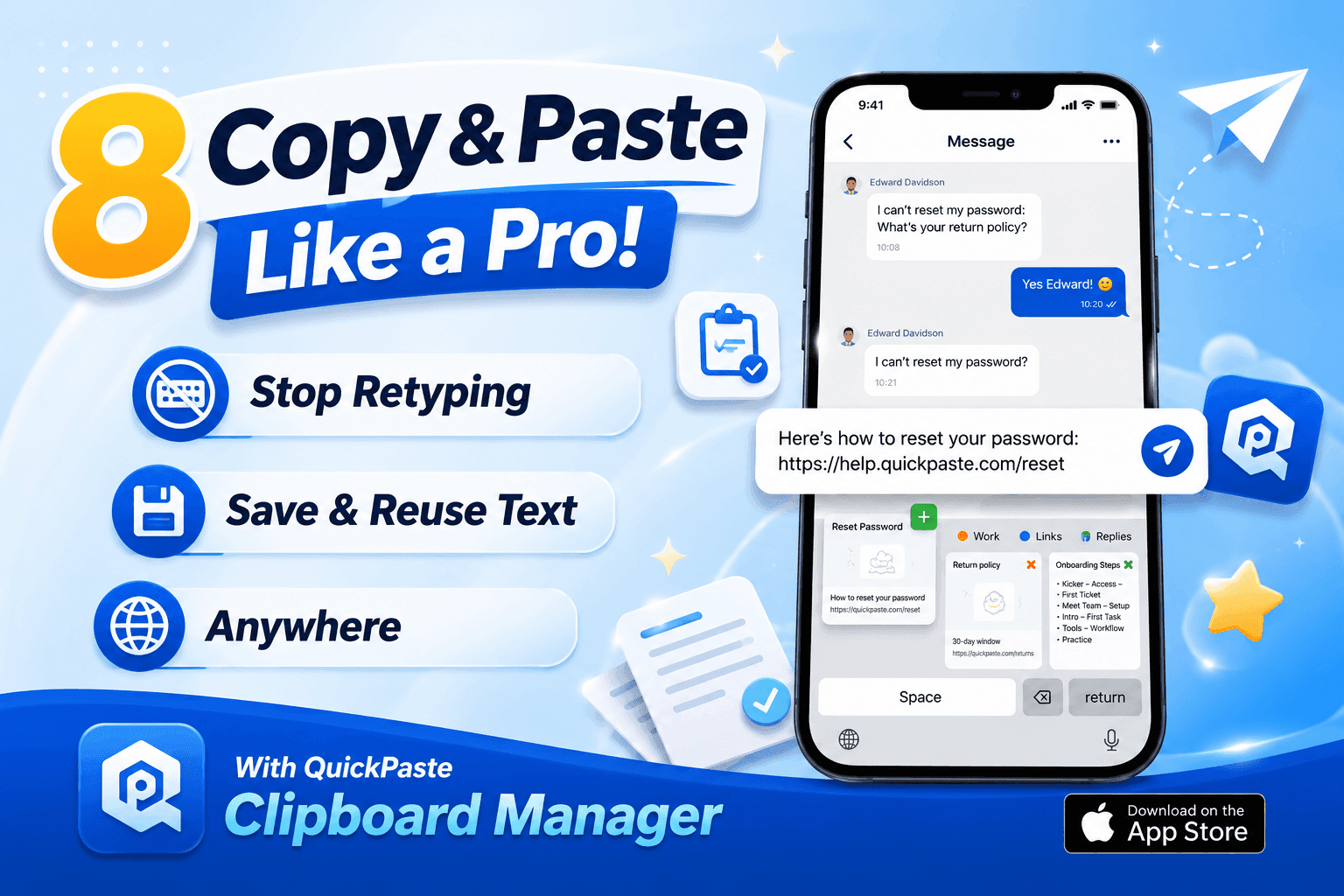
Typing the same messages again and again wastes time. A clipboard manager like QuickPaste lets you save frequently used text and paste it instantly.
👉 Download QuickPaste for iPhone → https://bit.ly/47YuJGz
Use it for:
- Email replies
- Addresses
- Links
- Canned responses, Saved Replies
Organize Your Home Screen for Speed
Most people organize apps visually. But for productivity, organize them by usage frequency.
Most-used apps → first screen
Less-used apps → folders or App Library
Less searching = faster actions.
Use Siri for Quick Tasks
Ask Siri to:
- Send messages
- Set reminders
- Open apps
It’s faster than manual navigation.
Organize Apps with Smart Stacks
Use widget stacks to keep your home screen clean and efficient.
Swipe through widgets instead of opening multiple apps.
Bonus Tip: Combine These for Maximum Efficiency
The real power comes from combining these tips.
Use QuickPaste + Text Replacement for ultra-fast typing
Combine Focus Mode + Shortcuts for distraction-free work
Final Thoughts
Small improvements in how you use your iPhone can lead to massive time savings. Start with 2–3 tips from this list and build from there.
If you want the biggest immediate impact, start with a clipboard manager like QuickPaste—it removes one of the most common daily frustrations on iOS.
FAQs
What is the best productivity app for iPhone?
Apps like QuickPaste help save time by managing copied text and improving workflow.
How can I use my iPhone more efficiently?
Use features like text shortcuts, clipboard managers, and automation tools.
Does iPhone have a clipboard manager?
Not by default, but apps like QuickPaste provide full clipboard functionality.